
Gemini Omni video editing means changing a finished video with a plain-text instruction instead of an editing suite: you hand the model an existing clip, describe the edit - restyle the scene, add animated text, move the frame - and it returns the modified video with the speaker and audio untouched. Announced at Google I/O on May 19, 2026, Gemini Omni is Google's first model built to edit video conversationally rather than generate it from scratch. Inside Pixair AI, Gemini Omni Flash runs as an edit node in AI Canvas: connect a clip, write the instruction, and a 6-second edit renders in a few minutes for 80 credits.
What Is Gemini Omni?
Gemini Omni is Google's unified multimodal video model, unveiled at Google I/O 2026. Gemini Omni Flash - the first model in the Omni family - takes text, images, audio, and video in a single prompt and returns video. Google rolled it out to AI Plus, Pro, and Ultra subscribers through the Gemini app and Flow, made it free inside YouTube Shorts and the YouTube Create app, and opened developer access through the API on June 30, 2026.
What separates Omni from earlier video models is the direction of the workflow. Models like Veo generate a clip from a text description or animate a still image - they create. Omni edits: it takes a video that already exists and rewrites it from an instruction, keeping characters consistent, physics plausible, and everything you did not mention exactly as it was. Each instruction builds on the last, so the scene remembers what came before. For ad work that difference is the whole story - your raw clip already has the right person saying the right words, and what you need is styling, motion graphics, and format, not a new generation.
How Does Gemini Omni Video Editing Work?
You give the model two things: the source clip and an edit instruction. The instruction works best as a short list of imperative changes, each anchored to a timecode range, plus one line stating what must not change. The model then re-renders the clip with those edits applied. Here is the actual instruction behind one of the AI Canvas templates - it turns a raw talking-head avatar clip into a styled UI-style reel:
Shrink this video into a rounded-corner floating card on a near-black background. Keep the speaker, his voice, and audio exactly the same.
[0-2s] Card in the upper half; a huge white word “REEL” appears below it.
[2-4s] Card glides to the lower half; the word changes to “ONE PHOTO”; small pill tags stack up in a list: “1 photo”, “auto-created”, “ready to post”.
[4-6s] A cursor clicks the “1 photo” pill; it turns lime green; a thin progress bar finishes filling along the bottom.
Only lime green and white accents. Keep everything else the same.
And here is what that one instruction does to the clip - same speaker, same voice, same 6 seconds, completely different creative:
Before: the raw talking-head clip
After: the same clip restyled by Gemini Omni
One prompt-based edit pass: the speaker and audio are preserved while the framing, text animation, and interface styling are generated around them.
Gemini Omni vs a Manual Video Edit
The same reel edit done by hand means an editing suite, keyframed motion graphics, and a revision loop measured in days. Done as a prompt, it is a rerun measured in minutes. A Gemini Omni edit costs 70 credits for a 4-second clip up to 120 for 15 seconds, and the Pixair AI Pro plan is a flat $24/month for 400 credits - no per-edit invoices, no revision rounds billed separately.
Manual edit (editor or freelancer)
Editing suite + revision rounds

Gemini Omni in Pixair AI
Manual edit (editor or freelancer)
Editing suite + revision rounds
Gemini Omni in Pixair AI
Cost per styled edit
$50 - $300 per round
Flat $24/mo plan
Turnaround
1 - 3 days
A few minutes
Revision loop
New brief, new invoice
Rewrite the prompt, rerun
Skill required
Editing software
A plain-English instruction
Speaker and audio
Re-synced by hand
Preserved automatically
Motion graphics
Keyframed manually
Described with timecodes
Reusability
Project files per editor
Saved AI Canvas workflow
How Do You Edit a Video With Gemini Omni in Pixair AI?
AI Canvas is Pixair's node-based workflow builder, and Gemini Omni Flash is one of the models in its video node picker. The edit path is four steps, and the whole graph saves as a workflow you can rerun with a new clip next week.
Get a source clip onto the canvas
Any video node output works as the source. A common starting point: generate an AI avatar from one photo, connect it to a video node with your script, and you have a talking-head clip with native audio and tight lip-sync - no filming, no creator booking.
Connect it to a second video node set to Gemini Omni
Add another video node, pick Gemini Omni Flash Preview in the model picker, and wire the first clip into it. Because Omni is a video-to-video model, this node consumes the upstream clip instead of animating a still frame. Pick 9:16 for TikTok and Reels or 16:9 for YouTube and display placements.
Write the edit as simple, timecoded instructions
Describe each change in one imperative sentence and anchor it to a time range, then add a preservation line for everything that must stay put. Pixair reshapes your instruction to the model's best practices automatically - fitting timecodes to the clip length and keeping the edit list clean - so a rough description still lands as a precise edit.
Run it, then save the graph as a reusable workflow
A 6-second edit costs 80 credits and renders in a few minutes. If the result is close but not right, adjust one line of the prompt and rerun - each attempt is an iteration, not a new project. Save the graph and the same edit style becomes a template for every future clip.
What Makes a Good Gemini Omni Edit Prompt?
- One imperative edit per line. “Shrink the video into a floating card” beats a paragraph of atmosphere. The model executes instructions; it does not interpret mood boards. Stack simple edits rather than writing one complex sentence that mixes three changes.
- Always state what must not change. The preservation clause - “keep the speaker, his voice, and audio exactly the same” - is the highest-leverage line in the prompt. Without it the model may restyle the person along with the scene, and a drifting face kills an ad creative.
- Anchor changes to timecodes. Splitting a 6-second clip into [0-2s], [2-4s], and [4-6s] beats describing a sequence in prose. Timecodes give the edit a storyboard, which is what makes text animations land on beat instead of floating in vaguely.
- Spell on-screen text in quotes, exactly. Any word the edit should render - a headline, a pill tag, your brand name - goes in quotes with exact spelling. Generated typography is the most visible place for an AI edit to slip, and quoting is what pins it down.
- Constrain the palette and the motion. A closing line like “only lime green and white accents, smooth precise motion, no bouncing” keeps the output art-directed. Constraint lines are also what make edits consistent across clips, which matters once you run variants through ad creative A/B testing - you want the styling identical while the hook changes.
Want to try the full pipeline - photo to avatar to talking clip to styled reel? Start free with Pixair AI - 30 free credits, no card required.





Frequently Asked Questions
Gemini Omni is Google's unified multimodal video model, announced at Google I/O on May 19, 2026. Gemini Omni Flash, the first model in the family, takes text, images, audio, and video in one prompt and returns video - and unlike earlier models that only generate clips, it can edit a video you already have through conversational instructions while keeping characters, audio, and untouched details consistent.
Yes - that is its core difference from text-to-video models. You provide a finished clip plus a text instruction, and Omni re-renders the clip with those changes applied: restyled framing, animated text, moved elements. Everything you do not mention, including the speaker and the audio track, stays as it was. In Pixair AI Canvas this runs as a video-to-video node that consumes an upstream clip.
Partly. Google offers Gemini Omni Flash at no cost inside YouTube Shorts and the YouTube Create app, while access through the Gemini app and Flow requires a Google AI Plus, Pro, or Ultra subscription. In Pixair AI, Gemini Omni edits are credit-based: 70 to 120 credits per edit depending on clip length, and new accounts get 30 free credits to test the platform.
A Gemini Omni edit costs 70 credits for a 4-second clip, 80 for 6 seconds, and up to 120 for the 15-second maximum. The Pro plan is a flat $24/month for 400 credits, so a month covers several finished edits alongside your image work. The complete avatar-reel pipeline - avatar image, talking clip, and the Omni edit pass - totals about 126 credits per publish-ready reel.
Use one imperative sentence per change, anchor each change to a timecode range like [0-2s], put any on-screen text in quotes with exact spelling, and end with a preservation line such as “keep the speaker and audio exactly the same”. Pixair AI reshapes your instruction to the model's best practices automatically, but prompts written this way produce the most precise edits on the first run.
Keep reading
Related articles
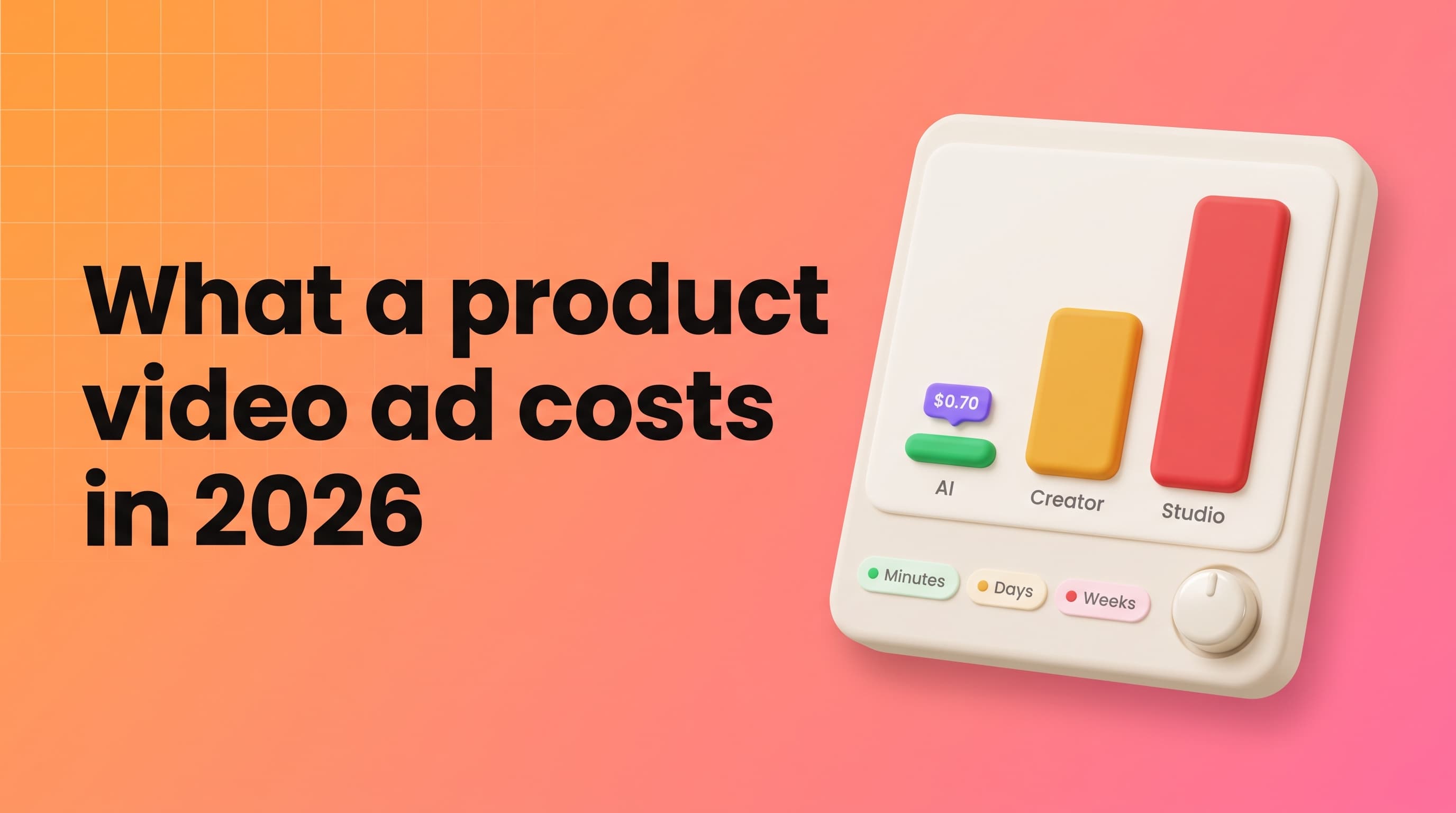
How Much Does a Product Video Ad Cost? 2026 Guide
A product video ad costs $0.70-$7.35 with AI, $175 median from a UGC creator before rights, and $1,000-$10,000 from a studio. Compare the real 2026 totals.
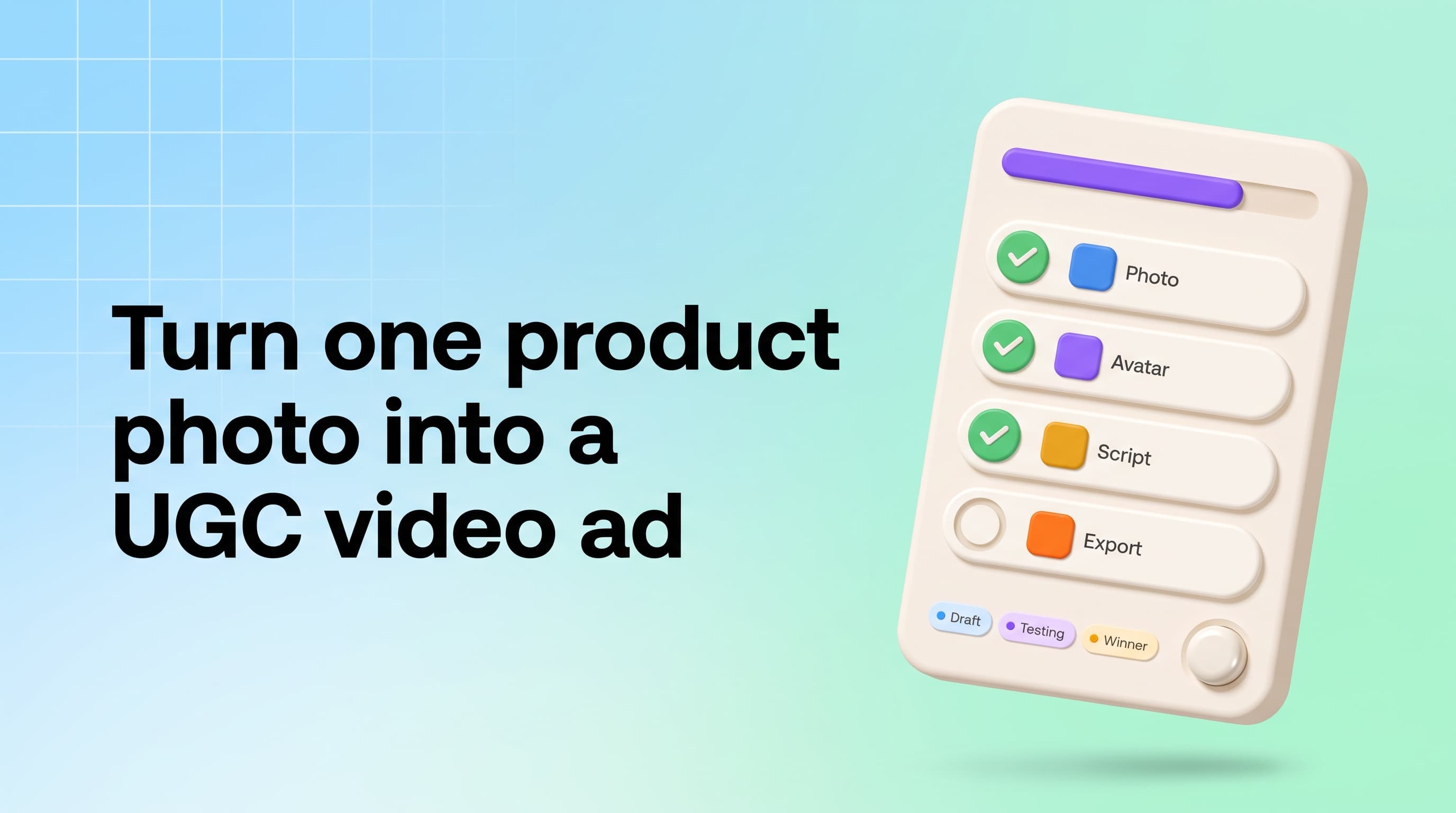
How to Turn One Product Photo Into a UGC Video Ad (2026)
Turn a single product photo into a UGC-style video ad for Meta and TikTok in minutes. Step-by-step guide, costs from $0.70 per video, and examples.

Product URL to Ad: How to Turn Any Store Link Into Ads
Turn a Shopify or WooCommerce product URL into static ads, UGC videos and showcase films. Ads from 9 credits on every plan - no photo uploads or retyped copy.