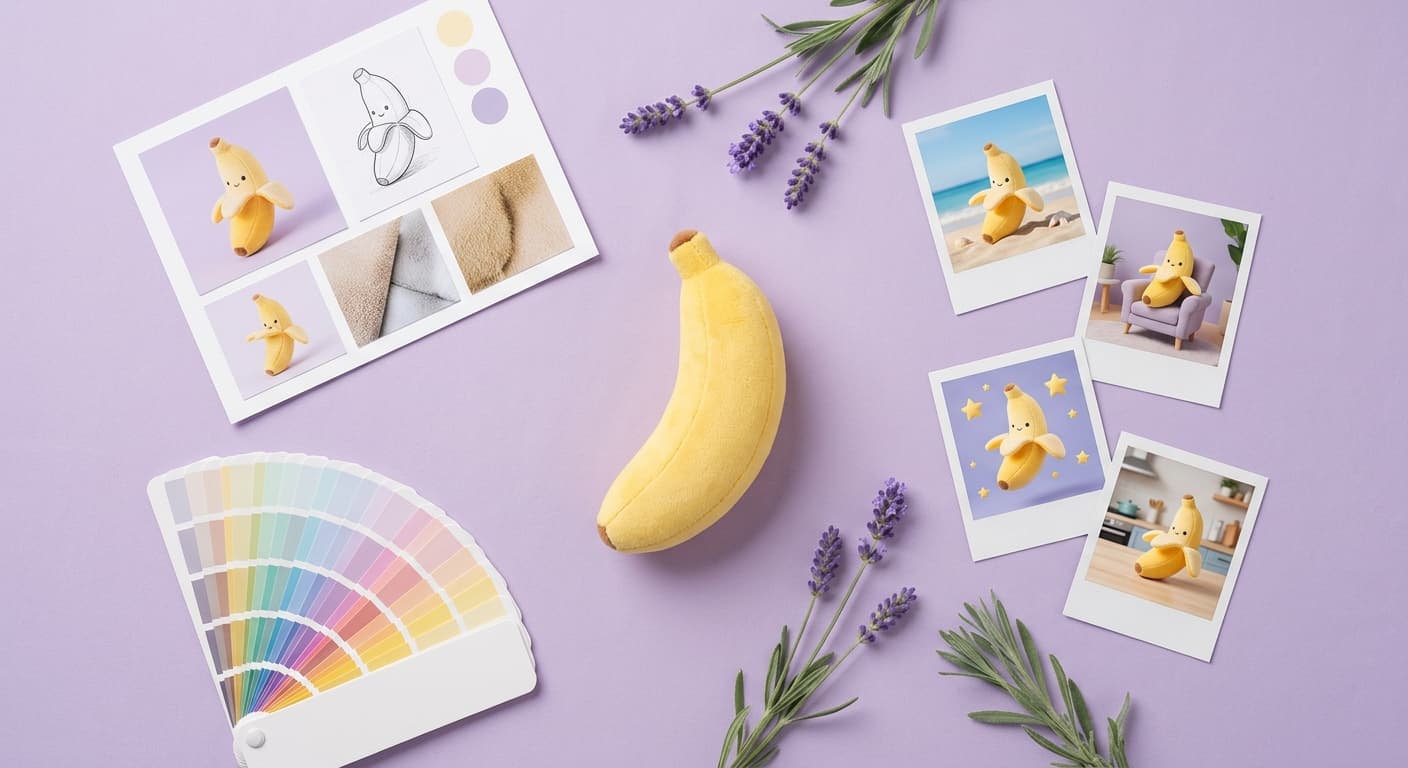
AI product photography tools let you generate studio-quality images from a single product photo. But what if you have a specific look in mind - a competitor's shot, a Pinterest mood board, or a reference image that captures the exact lighting and palette you want? Until now, translating that visual inspiration required briefing a photographer and paying for multiple rounds of revisions.
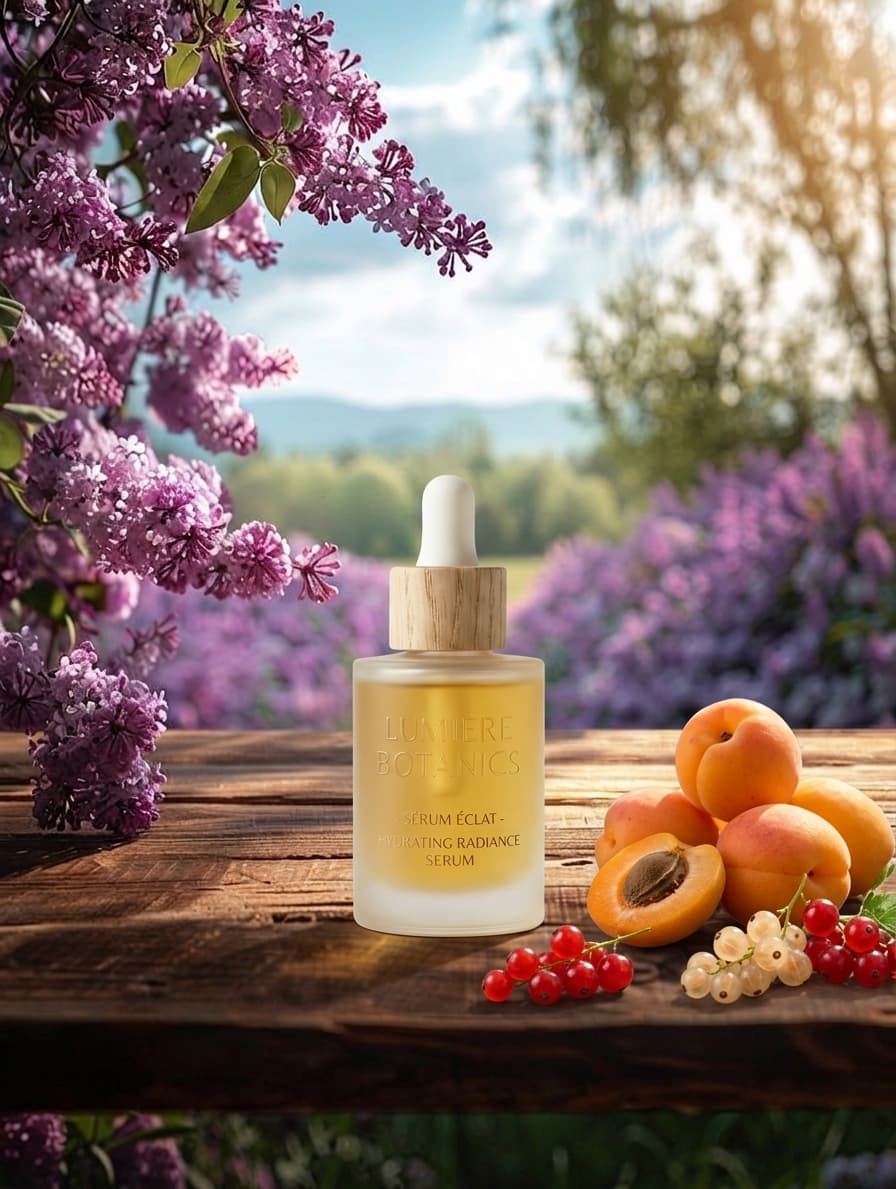
Pixair's new Inspire feature changes that. Upload any reference image directly in the AI chat and the model uses it as a visual guide - matching its lighting, mood, color palette, and atmosphere to your product. Then iterate with follow-up prompts to refine the result. Here is a real example.
AI Product Photography with Reference Images: A Demo
Product Image
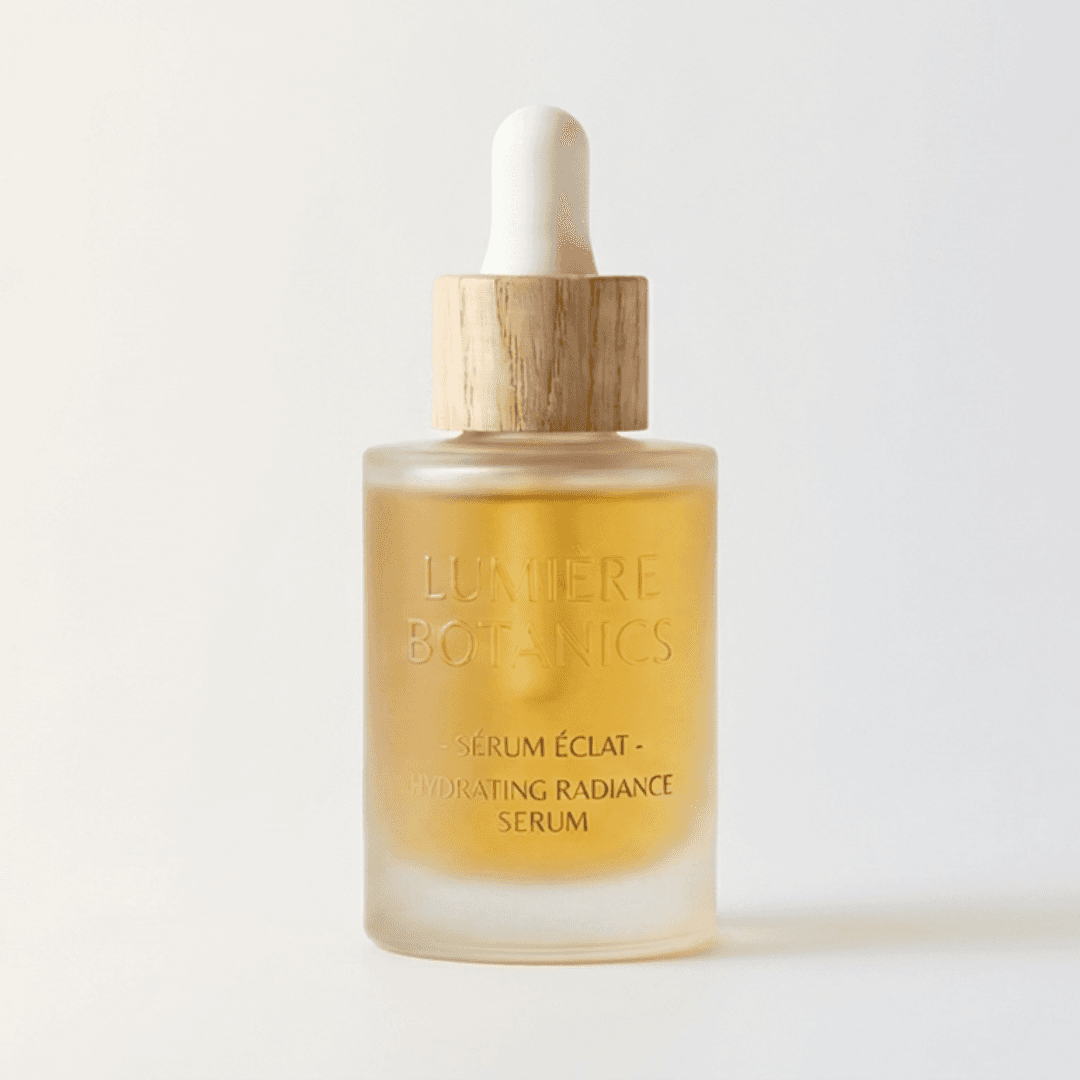
Original product photo uploaded to Pixair Studio
Inspiration Attached
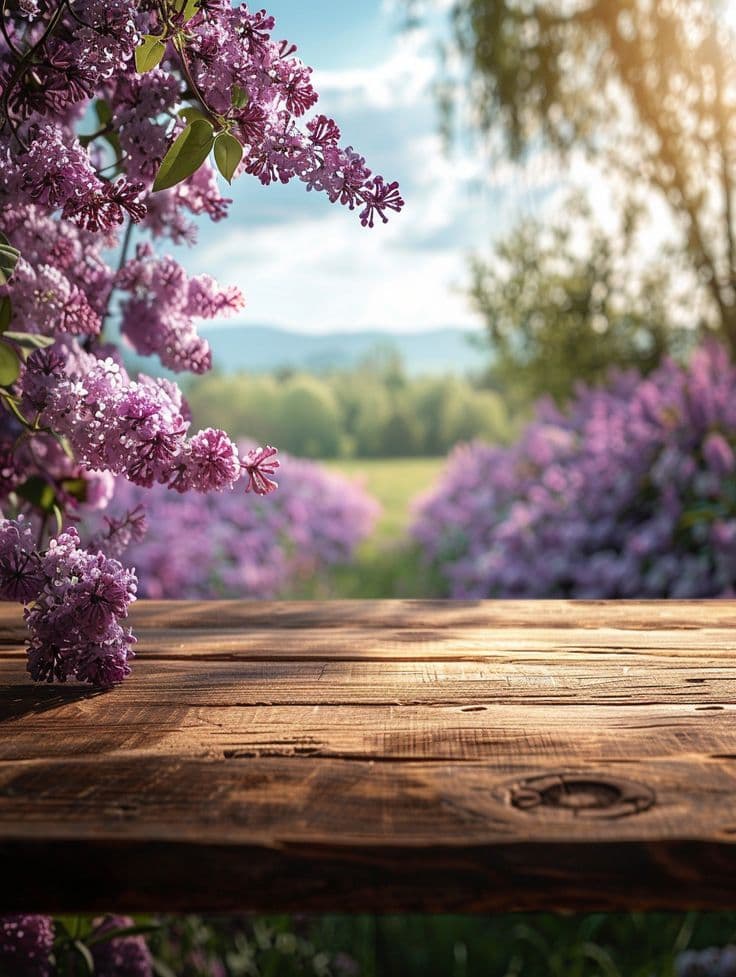
Reference image uploaded via Inspire to guide the AI style
“Add birds”
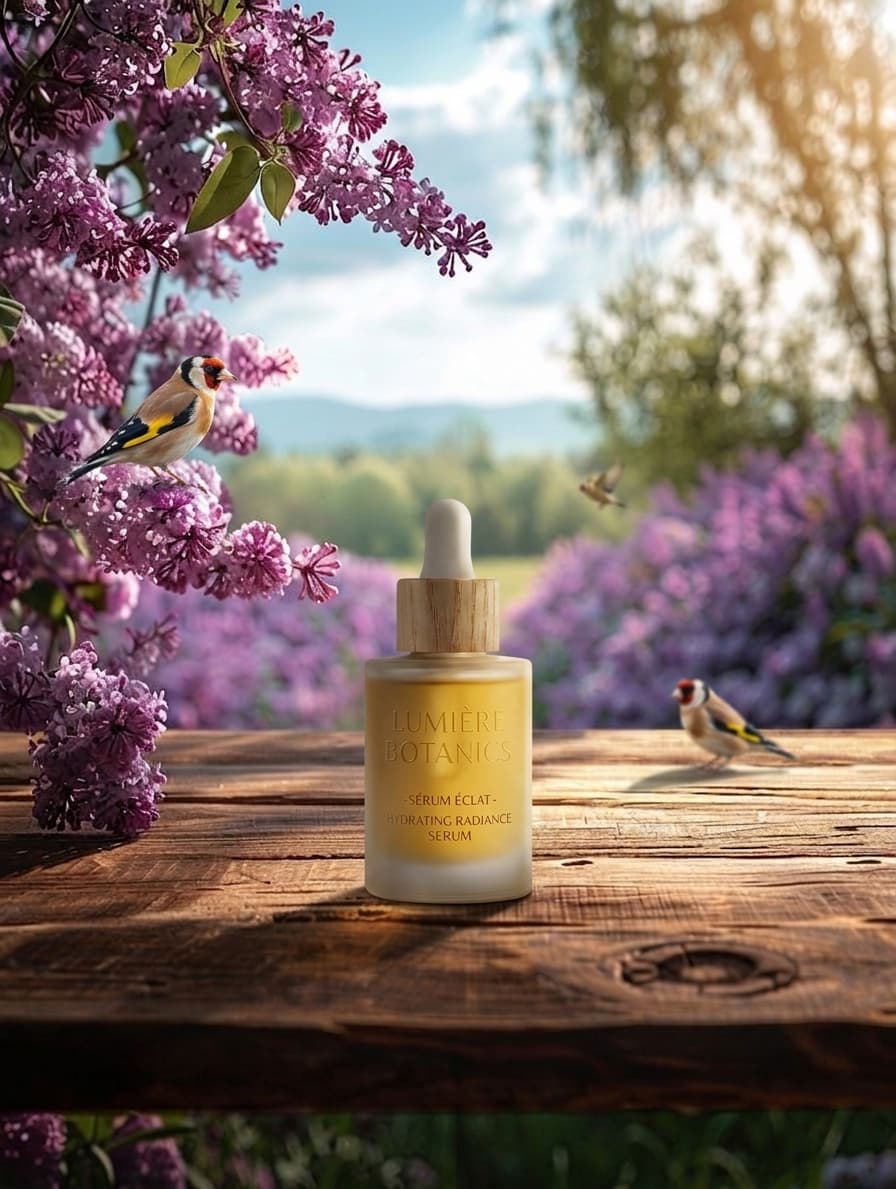
First prompt iteration - birds added to the scene
“Add fruits”
Follow-up prompt - fruits added, same mood
Notice how each iteration builds on the previous one. The inspiration image stays attached across all follow-up prompts, so the AI maintains the same lighting, color temperature, and atmosphere while applying your adjustments. You do not need to re-describe the mood or re-attach the reference each time.
What Is AI Inspiration-Based Product Photography?
Inspire is an image attachment option inside the Pixair Studio AI chat. Click the Inspire button, upload any image from your device, and send your prompt. The AI reads both your text instruction and the visual reference simultaneously, using the uploaded image to guide the scene it creates around your product.
The reference image influences:
- Lighting direction and quality - hard, soft, directional, diffused
- Color palette and temperature - warm golden tones, cool blues, moody darks
- Overall mood and atmosphere - editorial, minimal, dramatic, organic
- Scene composition feel - depth, negative space, background density
Your product remains unchanged. Only the environment and atmosphere are shaped by the reference.
How to Use a Reference Image for AI Product Photos
Step 1: Upload Your Product
Upload your product image to Pixair Studio. Any product photo works - a smartphone shot, a studio image, or even a rough prototype photo. The AI automatically removes the background and isolates the product.
Step 2: Attach Your Inspiration
Click the Inspire button (the image icon next to Attach in the chat toolbar). Upload any reference photo from your device - a competitor product shot, a lifestyle image, a mood board screenshot, or anything that captures the look you are going for. The image appears as a thumbnail labeled Inspiration in the chat input.
Step 3: Describe Your Scene
Type your scene direction in plain language. You do not need to describe the lighting or color palette - the reference image handles that. Focus on the specifics you want:
- “Place the product on a marble surface like this”
- “Moody outdoor setting with this kind of fog”
- “Recreate this energy but add a water splash effect”
- “Same color temperature, minimal white background”
Step 4: Iterate Freely
This is where Inspire really shines. The reference image stays attached across every follow-up prompt. As shown in the demo above, you can progressively build your scene:
- First prompt sets the base scene with the inspiration style
- “Add birds to the background” - the AI adds them while preserving the mood
- “Add fresh fruits around it” - another layer, same consistent atmosphere
- Keep going until the image is exactly what you want
Remove the reference any time by clicking the X on the thumbnail. Attach a different reference to shift the direction entirely.
Best Reference Images for AI Product Photography
Inspire works with any image, but certain types of references produce stronger results:
Reference Image vs. AI Presets - Which Should You Use?
Pixair's style presets (Hero Burst, Palm Shadow, Glacier, and others) are engineered scenes optimized for specific product categories and moods. They are the fastest path to a proven result.
Inspire is for when you have a specific visual in mind that no preset captures. The two are not mutually exclusive - select a preset for the base scene structure and attach an inspiration image to fine-tune the color temperature, mood, or lighting style on top of it.
- Preset only - fastest, proven results, great for standard use cases
- Inspire only - fully custom, driven entirely by your reference and prompt
- Preset + Inspire - structured scene with reference-guided atmosphere
Consistent Product Photography Across Your Catalog with AI
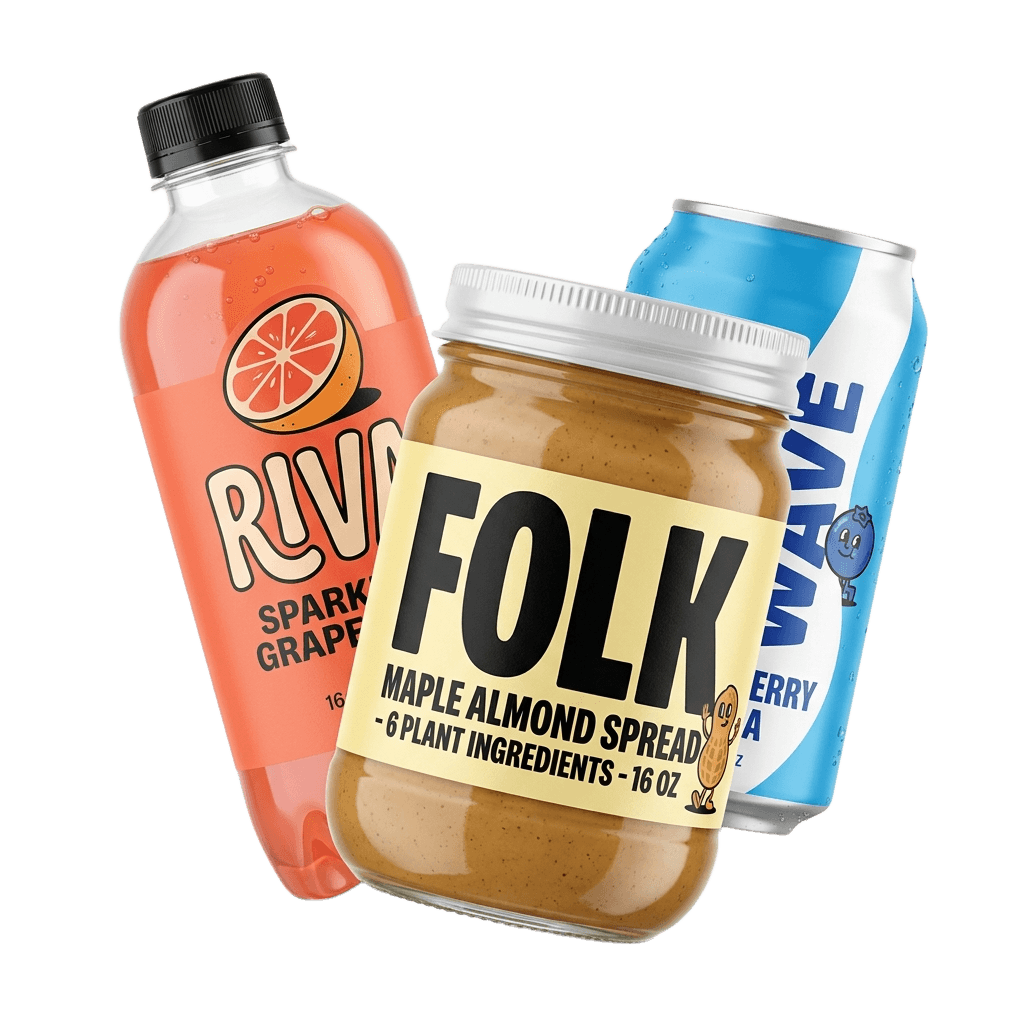
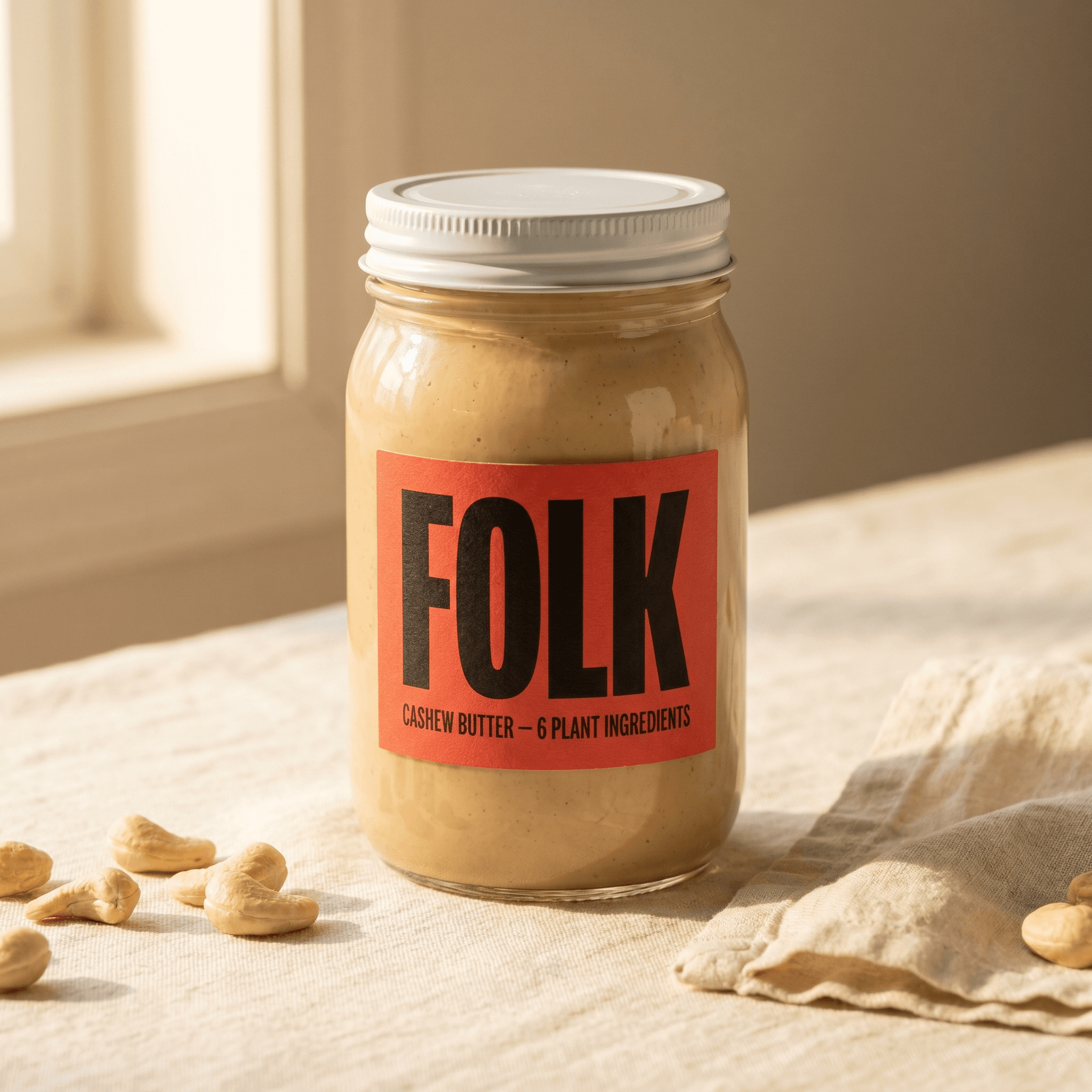
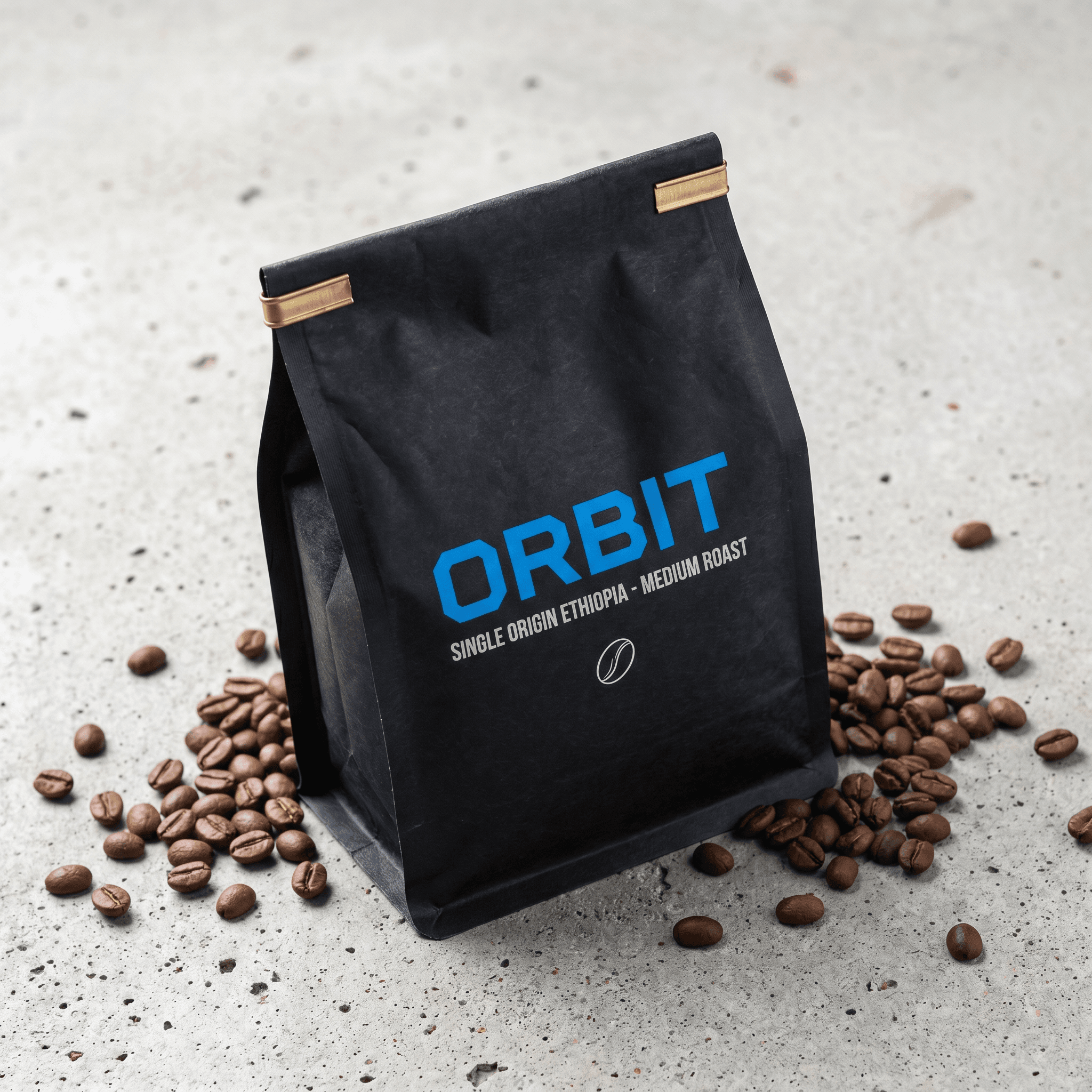
One of the hardest problems in product photography is consistency across a catalog. When you shoot different products at different times - even with the same photographer - lighting conditions, color temperature, and styling choices drift. The result is a product catalog that feels fragmented rather than cohesive.
With Inspire, you can lock in a reference image that defines your brand's visual standard and apply it across every product in your catalog. Upload a new product, attach the same reference, and the AI maintains the same lighting, mood, and atmosphere - generating a consistent look without a studio or a style guide document. For sellers managing large catalogs, this is one of the biggest cost advantages of AI product photography over traditional shoots.
Frequently Asked Questions
No. The AI extracts stylistic qualities from the reference - lighting character, color temperature, mood, and atmosphere - and applies them to a newly generated scene around your product. It does not reproduce the composition, props, or any identifiable elements from the reference. The output is an original scene.
Not necessarily. You can use Inspire without a preset, with a preset, or in combination. When both are active, the preset defines the scene structure and the reference image guides the visual tone on top of it - useful when you want a proven scene structure with a specific mood.
No. The inspiration image stays active across follow-up messages in the same session. You can refine your result with additional text prompts and the reference continues to influence each generation until you manually remove it.
JPEG, PNG, WebP, and HEIC all work. The image is used only for style guidance during your session and is not stored or used for model training.
Yes. Screenshots of ads, product pages, or mood boards work well. The AI extracts the visual qualities it needs regardless of image source or resolution - a 750px screenshot from Instagram performs the same as a full-resolution original.
Keep reading
Related articles
AI Product Photography for Food & Beverage Brands
Generate appetite-worthy food and beverage product photos with AI - condensation, steam, lifestyle scenes, and packaging shots. No studio. Conversion-ready images for every SKU in your lineup.
AI Ad Maker: Generate Product Ads from a Single Photo
Turn any product photo into a ready-to-post advertisement with AI. Choose between light and dark ad styles, auto-extract brand text, and export in any aspect ratio.
Product Photography Cost in 2026 - AI vs Studio vs Freelancer
Real 2026 pricing for product photography: studio, freelancer, and AI tools compared per image and per catalog. Find out which method fits your budget.