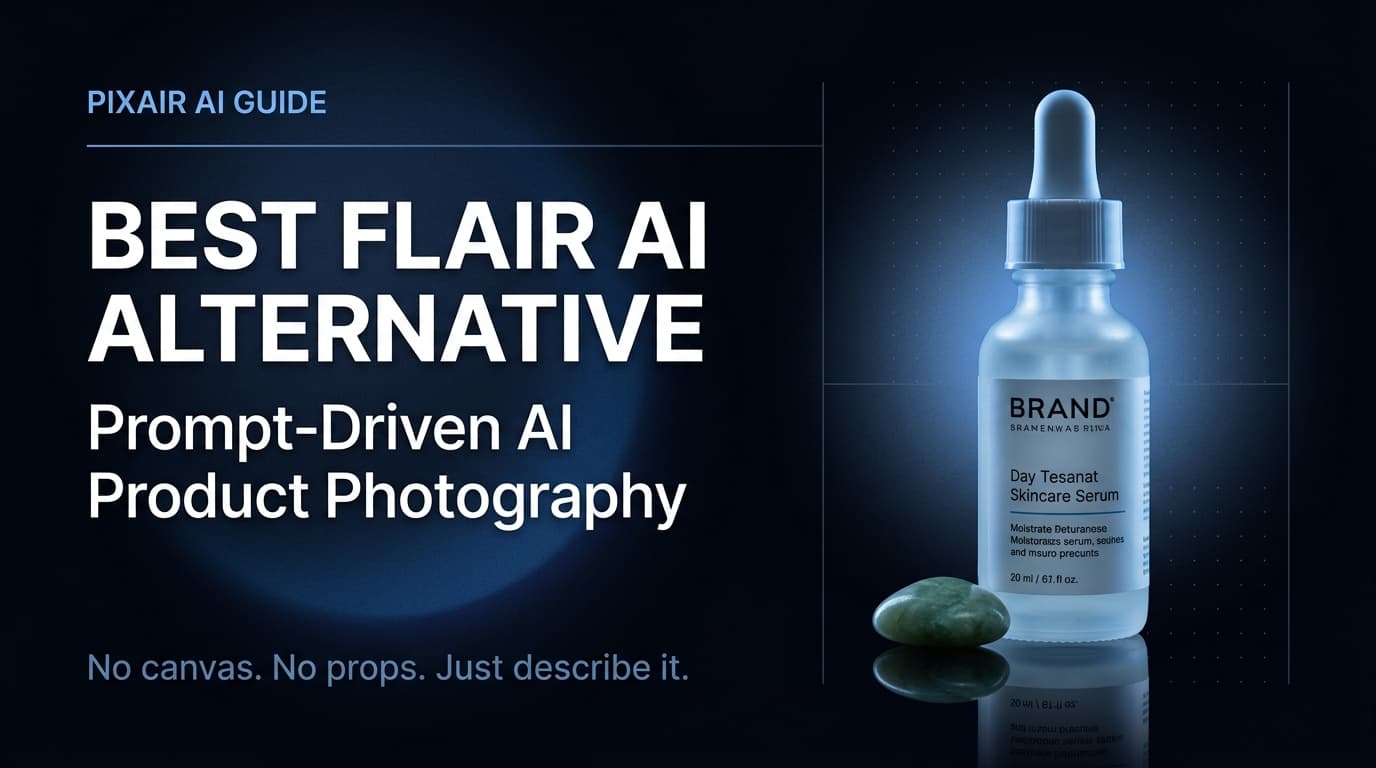
Flair AI built a visual canvas for product staging - drag your product onto the board, pull in props from the library, adjust the lighting sliders, and export a scene image. That image still needs to become an ad. You open Canva, lay out a headline, write copy, choose a format, export again. For sellers who run Meta, Google Shopping, or TikTok ads, that extra step happens after every single product shoot. The best Flair AI alternative in 2026 closes that gap: one product upload produces finished ad creatives - copy written from your label, layouts composed for every format - without a canvas or a second tool.
Where Flair AI Falls Short for Sellers Who Run Ads
Flair AI is a capable canvas tool for product staging. Its ceiling appears the moment you need to move that staged image into an ad. Three constraints stack on top of each other.
Scenes end at the image - ads are a separate job
Flair AI produces a product scene. That scene file then needs a headline, benefit callout, brand layout, and correct aspect ratio before it can run as an ad. For every product and every campaign, that is a full design session in a second tool. The photography and the advertising are two disconnected workflows with no shared context between them.
Every scene is assembled by hand
The canvas requires you to drag the product onto the board, select props from the library, position and scale each one, and adjust lighting sliders. For a single hero image this gives you precise control. For a catalog of 20+ SKUs each needing three scene types, it means 60+ separate manual assembly sessions - and the canvas does not carry over to the next upload.
Scenes are limited to available props
Your scene is constrained to whatever props Flair AI has in its library. If the prop you want does not exist there, it cannot be in your scene. Prompt-driven tools have no prop library ceiling - any scene element you can describe in plain language, the AI generates from scratch.
What a Full-Pipeline AI Photography Tool Does
Pixair AI treats the product photo as the input to the entire marketing pipeline, not just the scene generator. Upload one product photo and two things happen in the same session: the AI generates photorealistic product scenes from a text description, and the Ad Campaign Generator reads your product label - brand name, product name, ingredients, tagline - and produces six finished ad creatives with copy written from your actual packaging.
Your product is never regenerated. The label text, packaging colors, brand name, and printed graphics are taken directly from your original photo and remain pixel-accurate. The AI only generates what is behind and around the product for scenes, and composes the ad layout around the isolated product for ad creatives.
The result: the gap between “finished product photo” and “ad live on Meta” collapses from hours of Canva work to the same session as the photo itself.
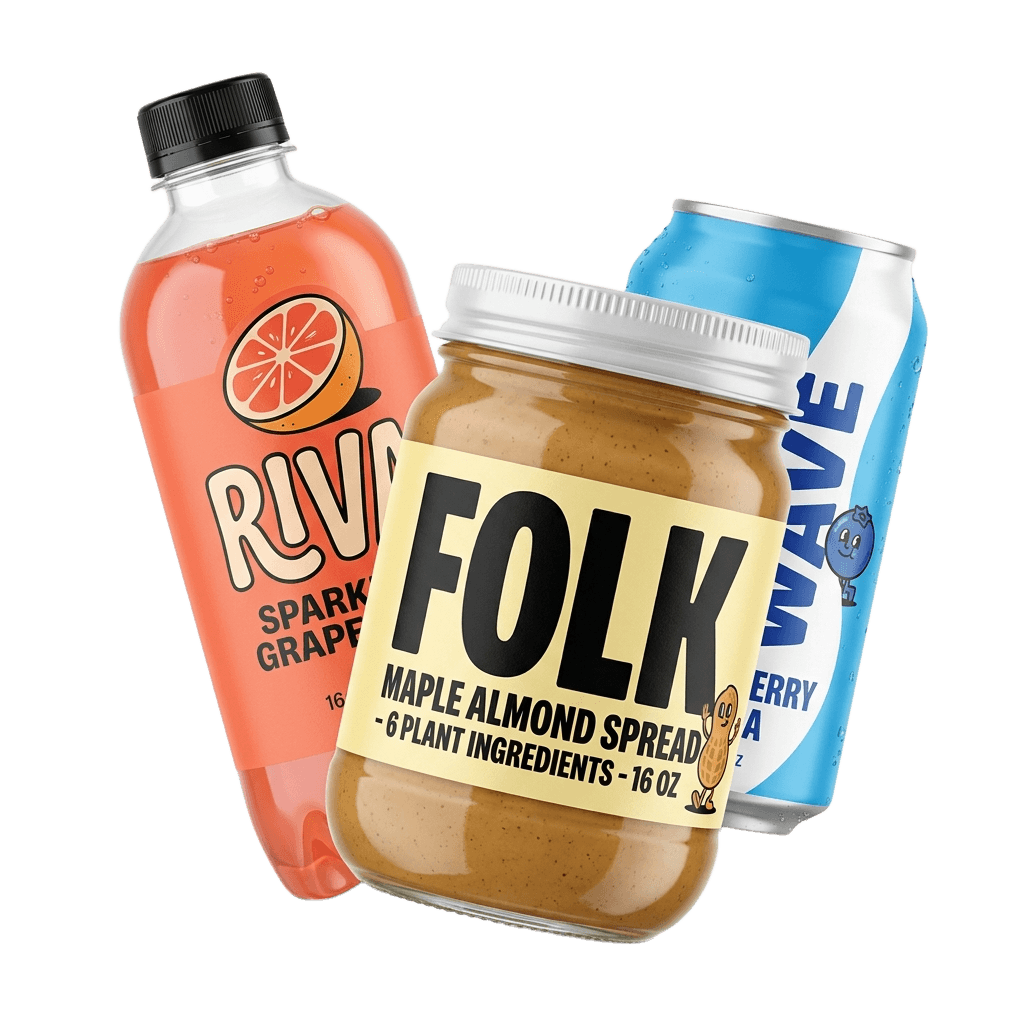
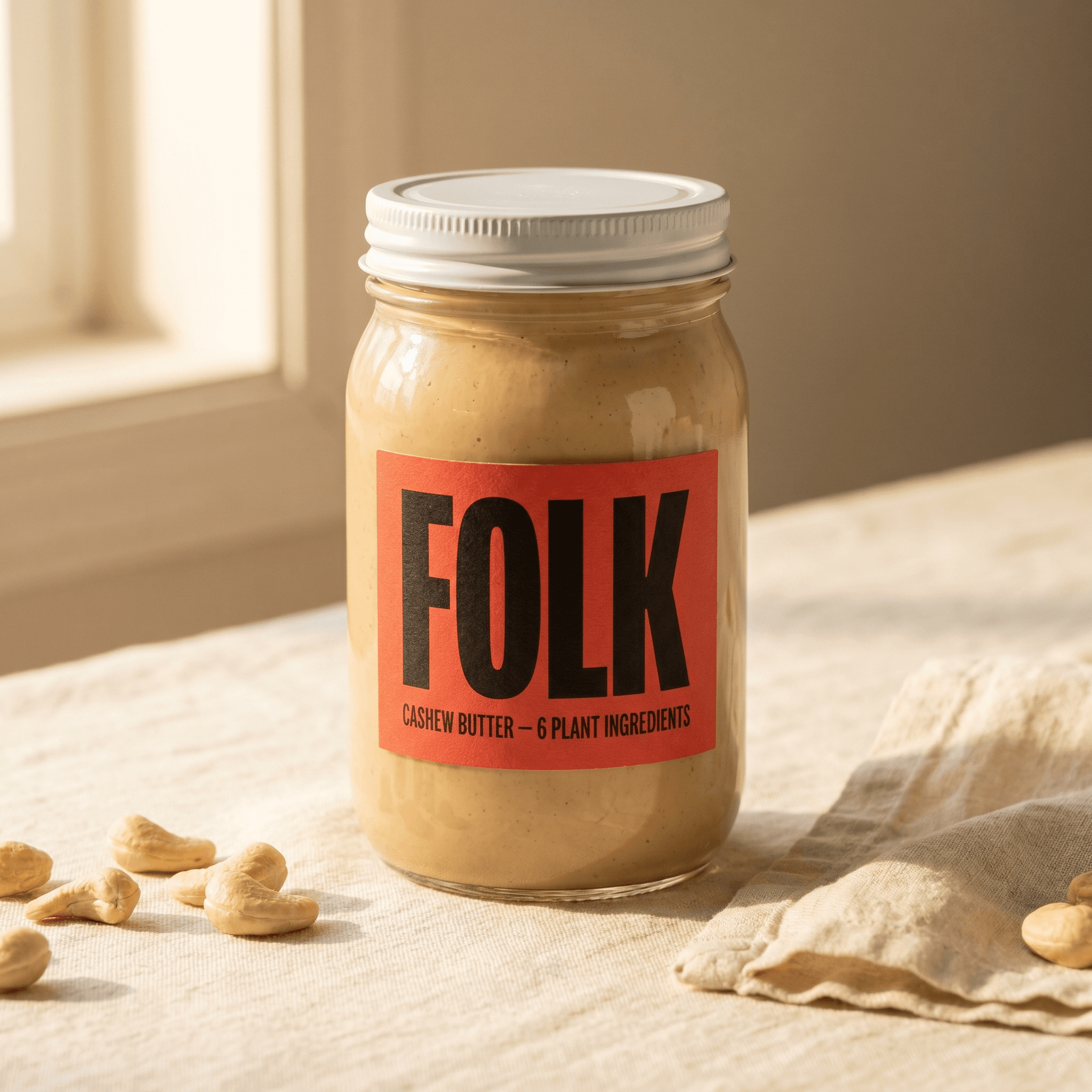
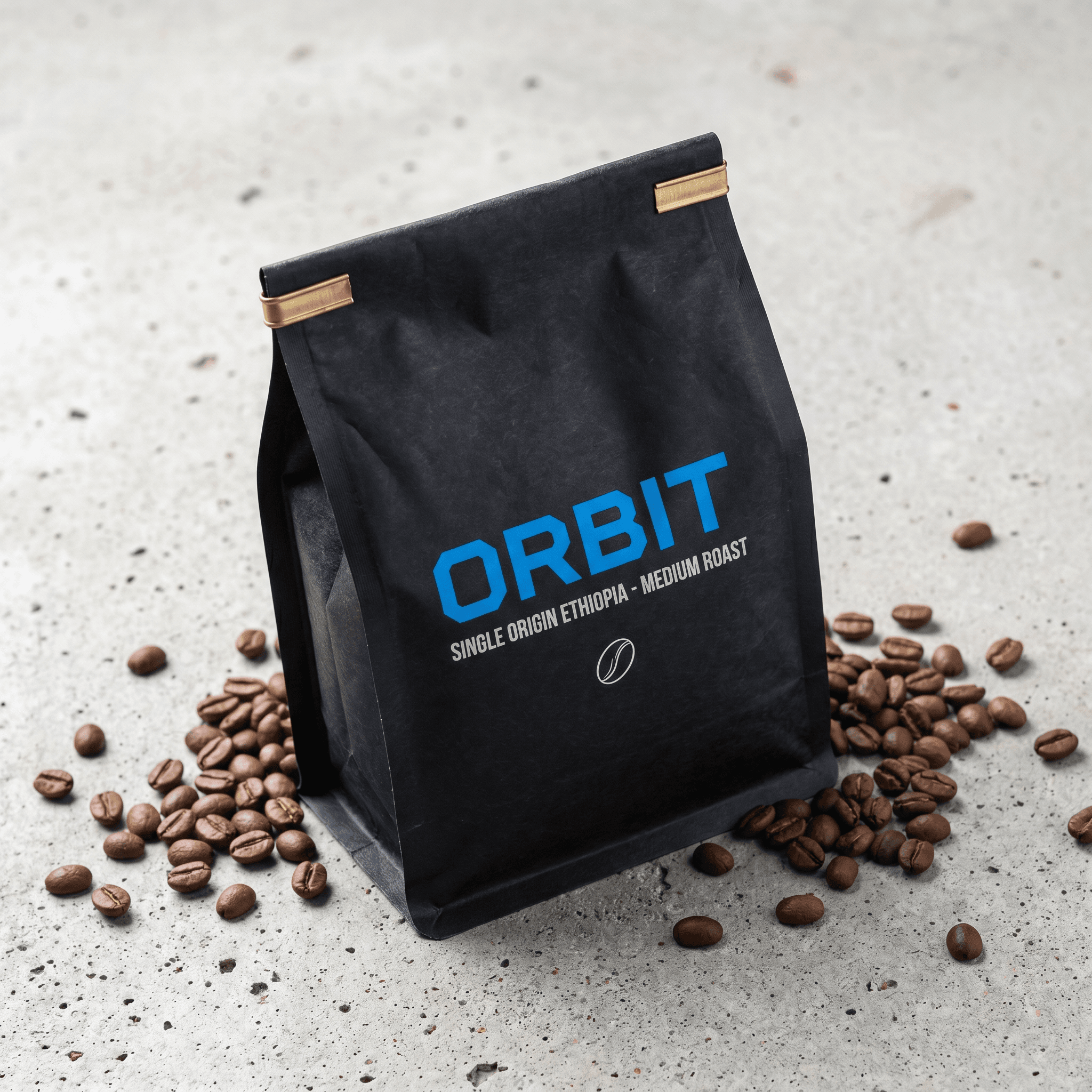
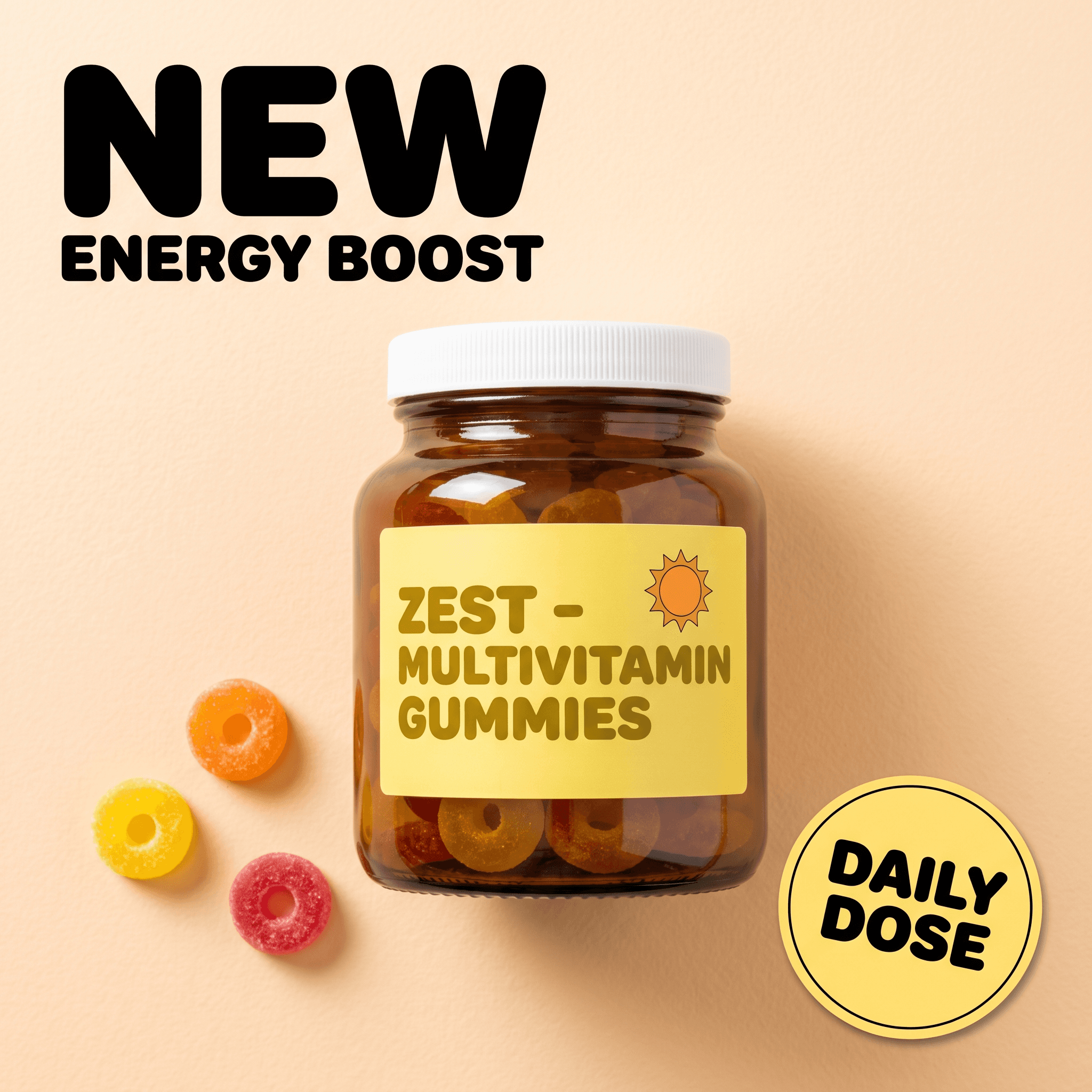
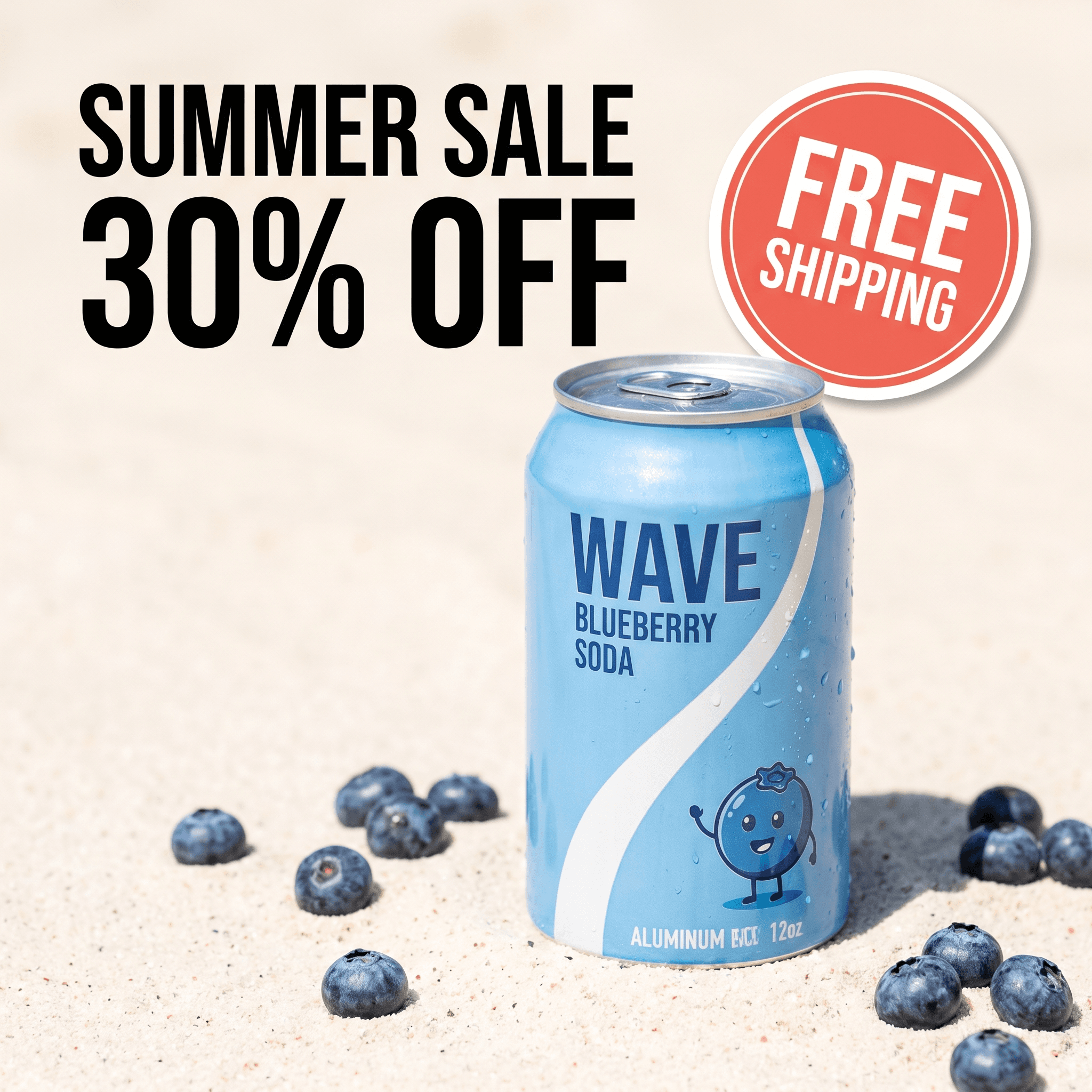
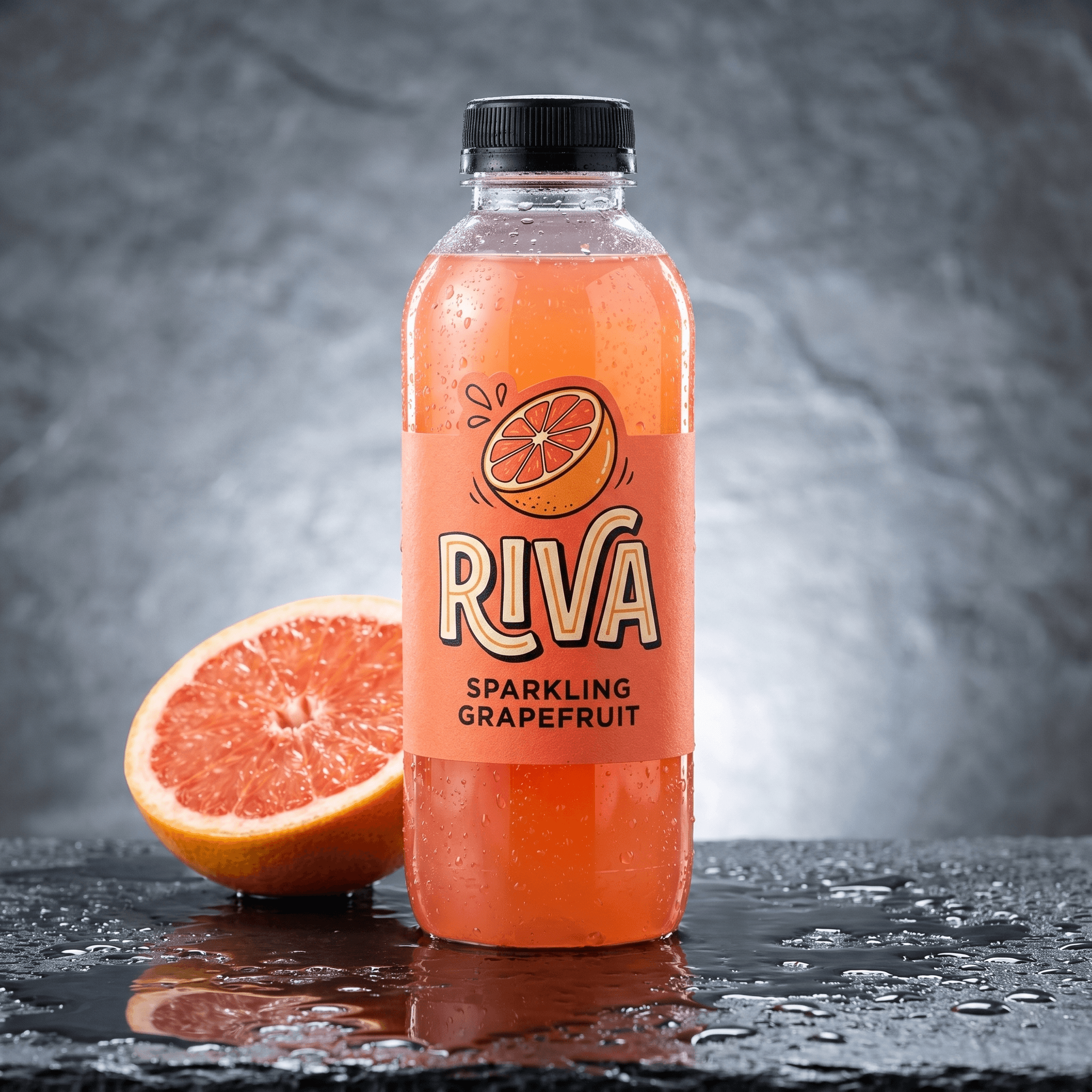
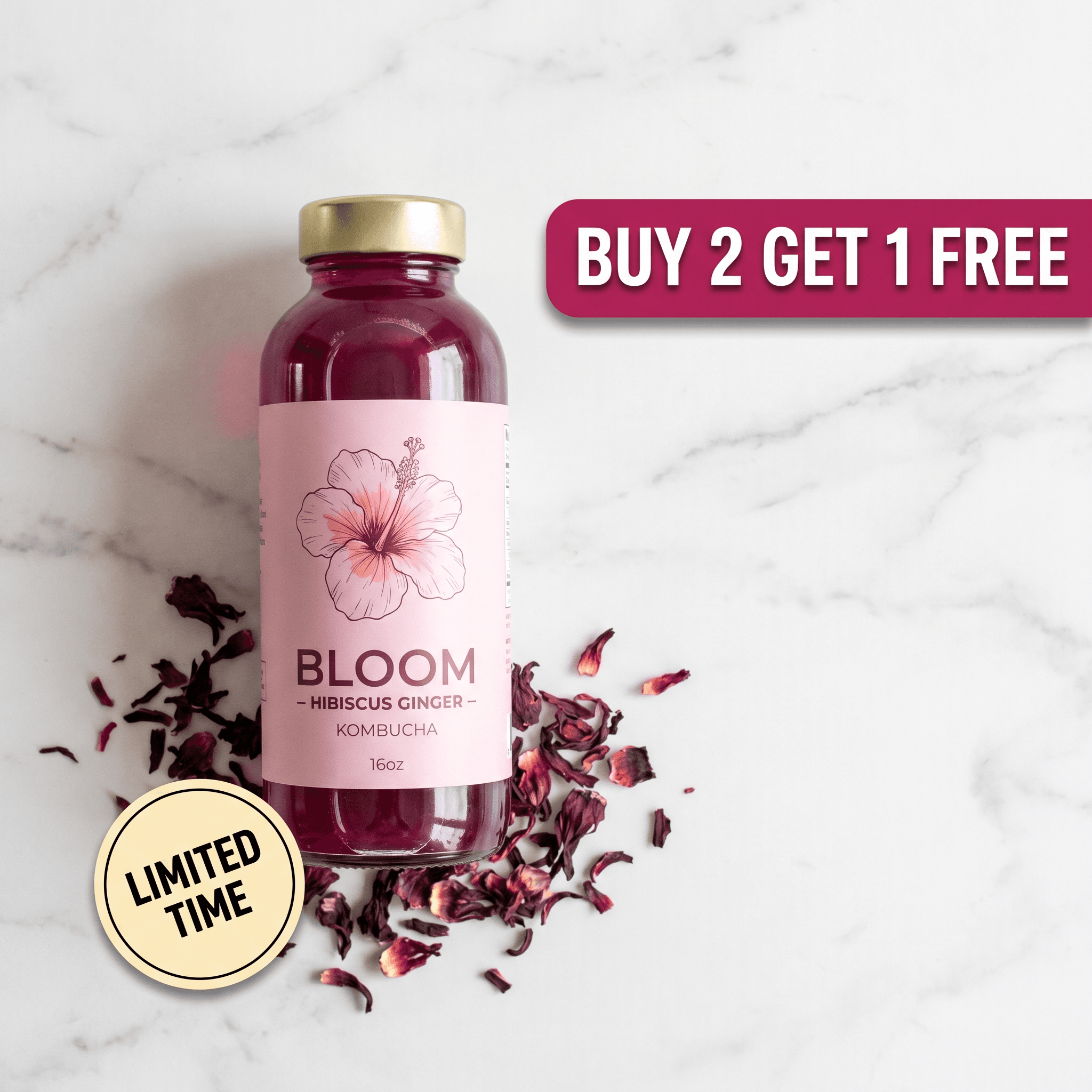
One product upload. Six ad creatives.
AI reads the label, writes the copy, composes the layout - no Canva, no copywriting.
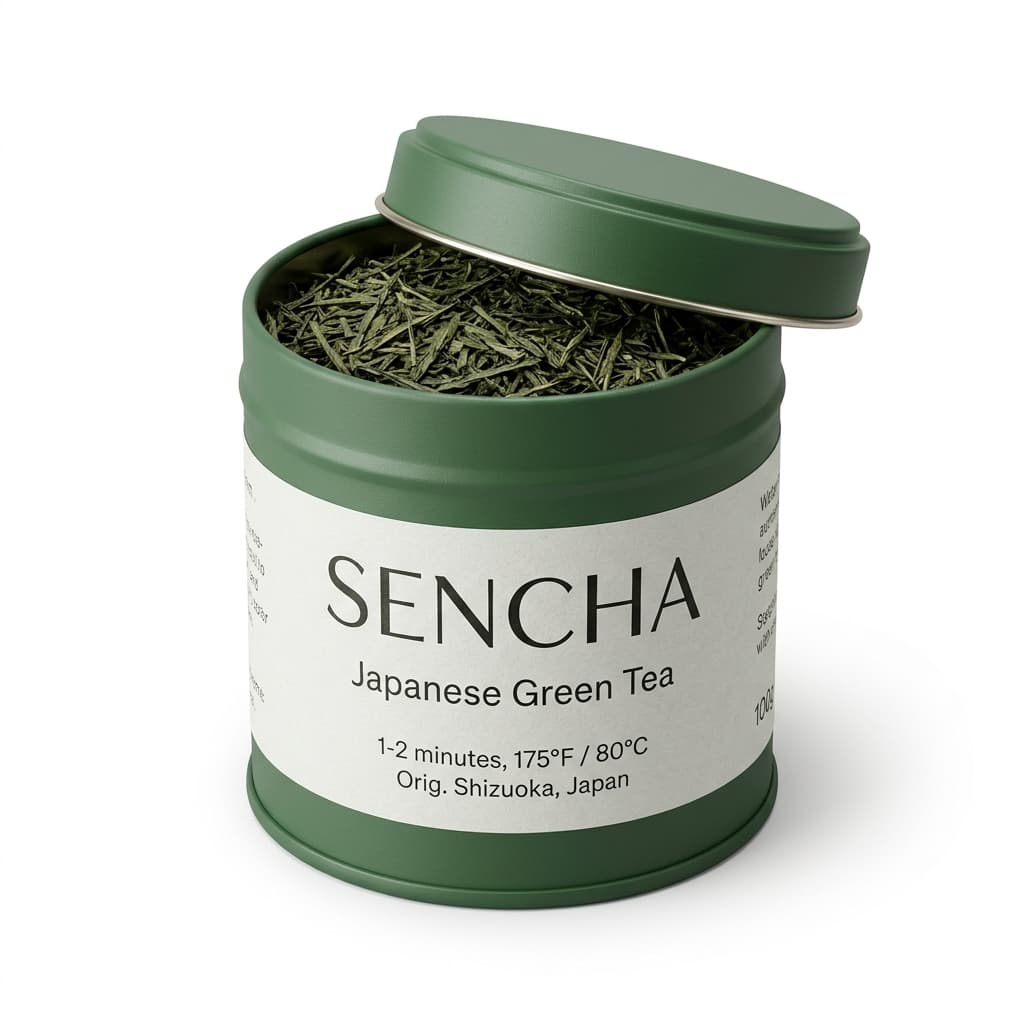
Source
One upload
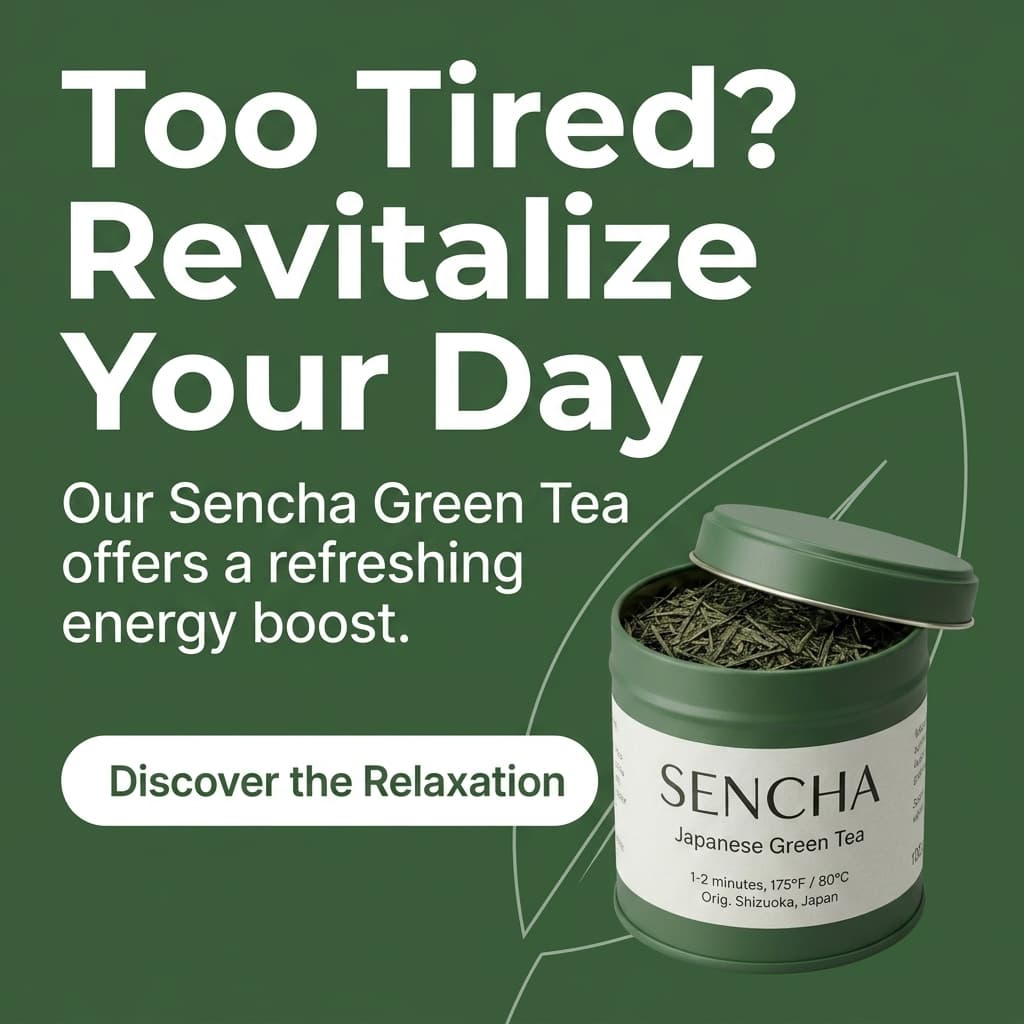
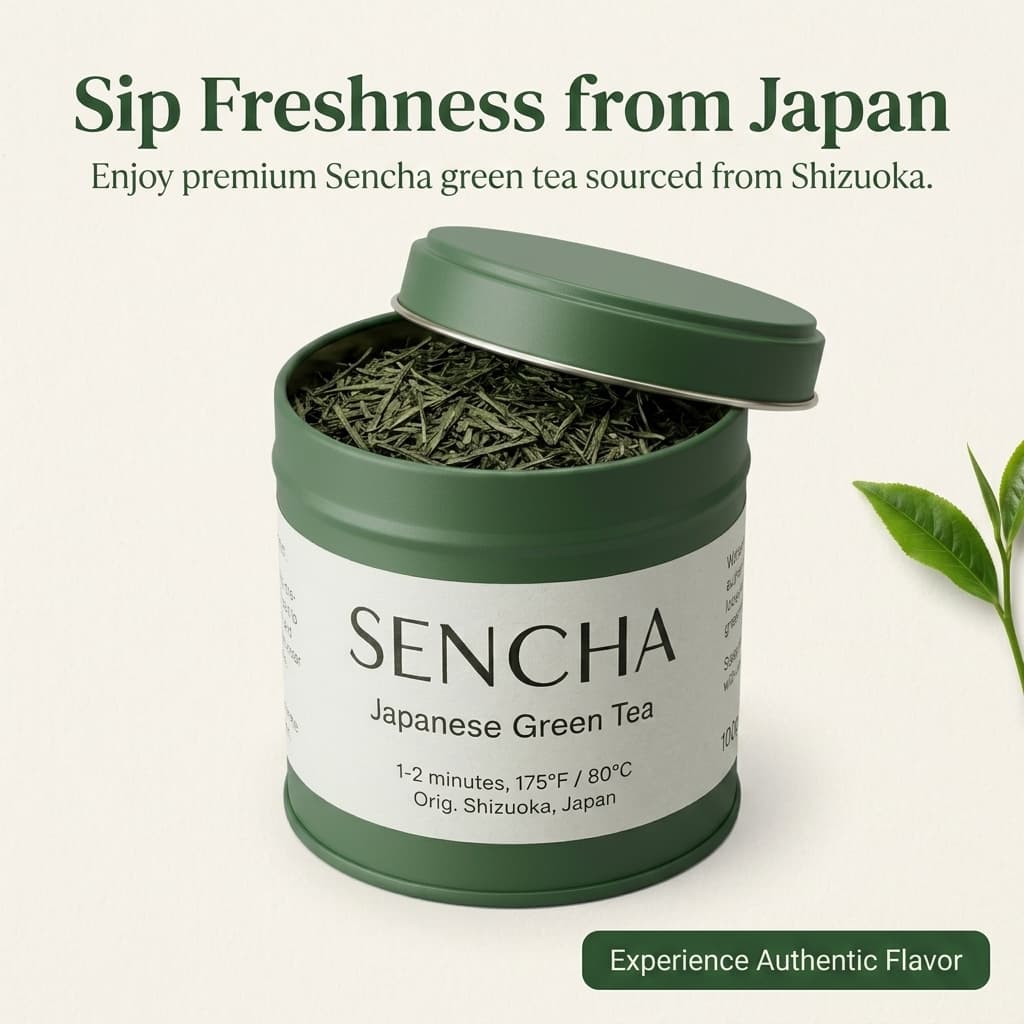
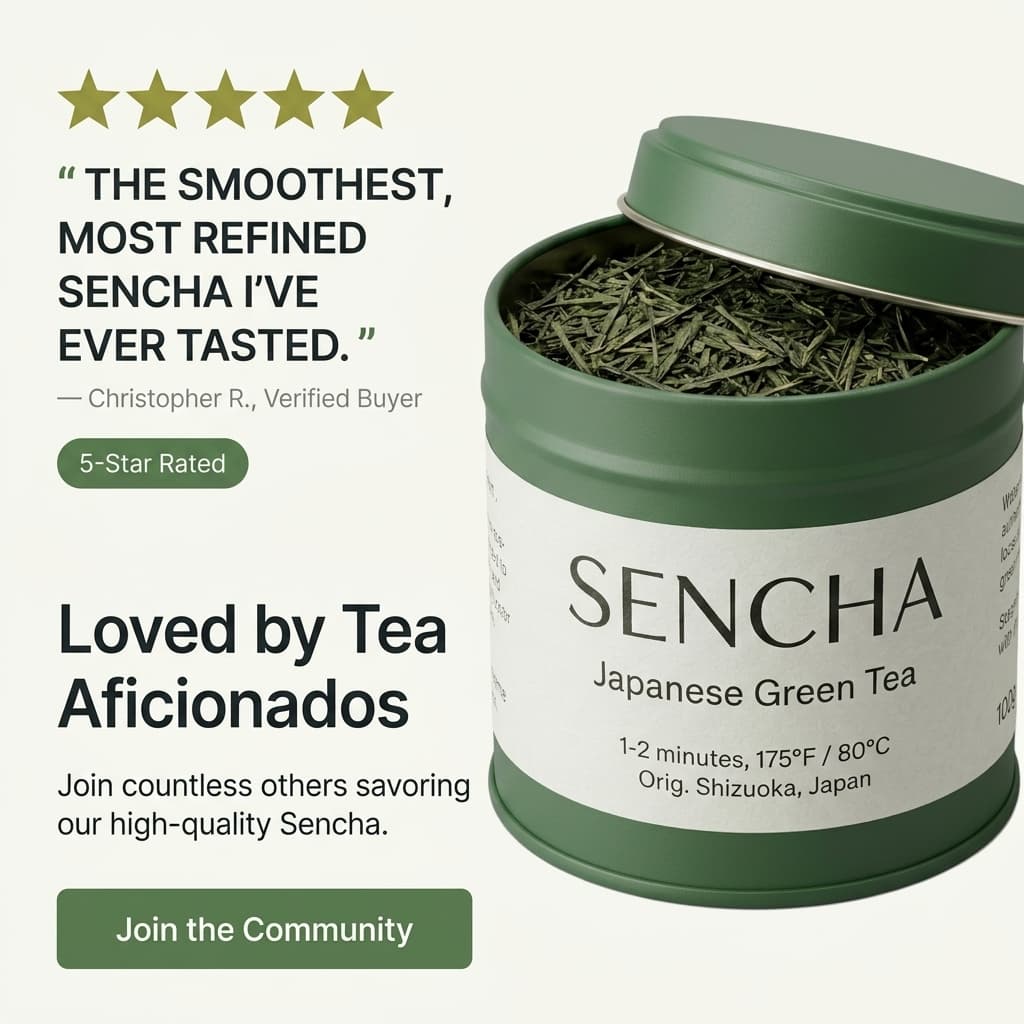
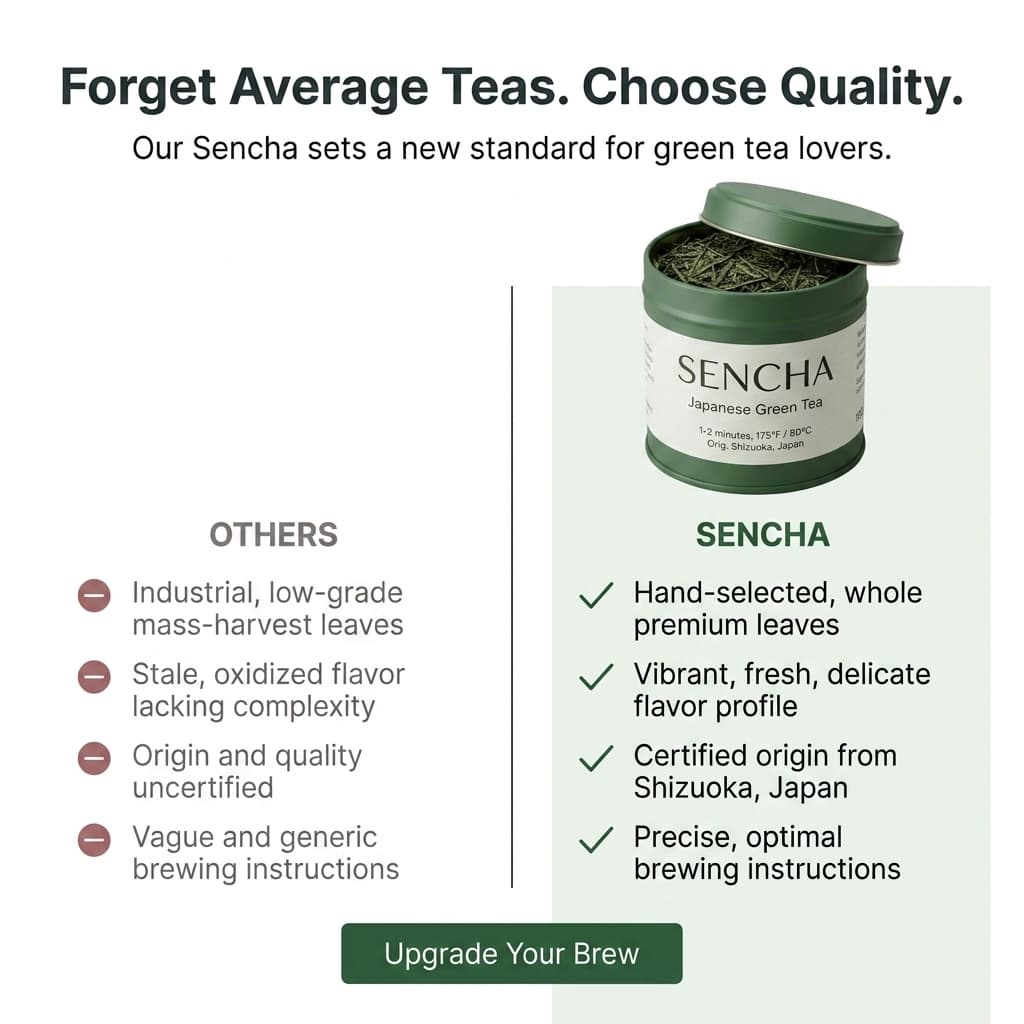
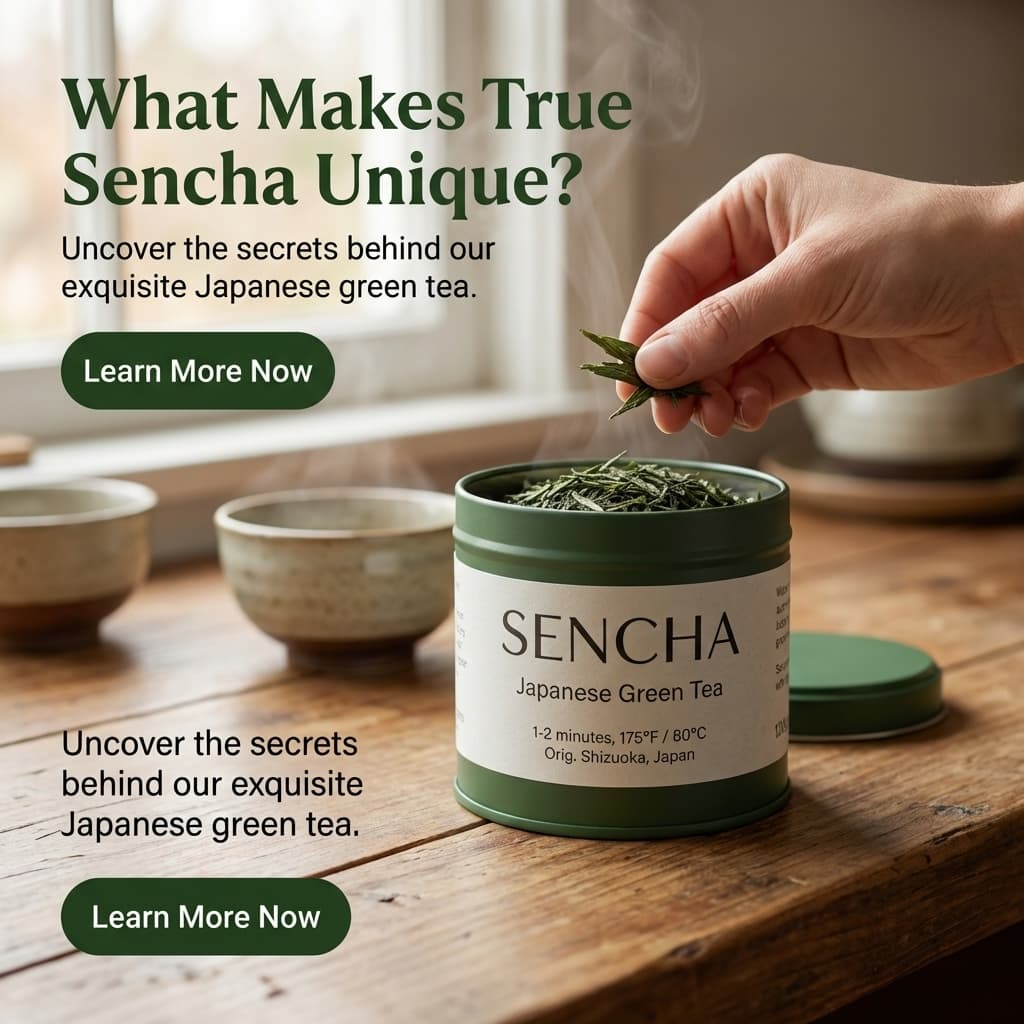
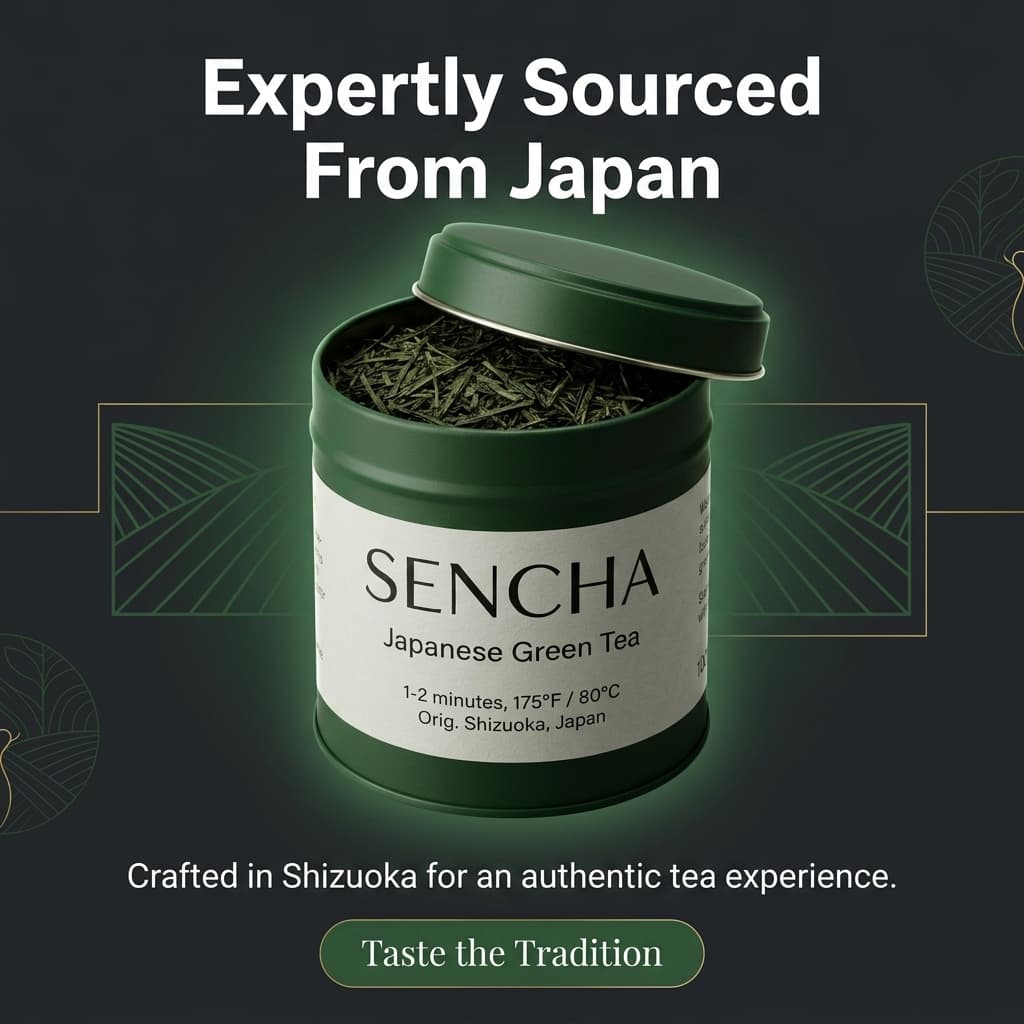
Dark and light formats, multiple aspect ratios. Ready to export directly to Meta, Google Shopping, or TikTok.
Step-by-Step: From One Product Photo to Six Ad Creatives
This workflow replaces the Flair AI canvas session plus the separate Canva ad session with a single Pixair AI session that ends with export-ready creatives.
Photograph the product on any flat surface
Place the product on a white or light grey surface near a window. A phone camera is sufficient - generation quality is determined by the AI, not source resolution. Ensure the full product silhouette is within the frame with a small margin around the edges. One front-facing photo per SKU.
Upload to Ad Campaign Generator
Upload the photo to Pixair AI and open the Ad Campaign Generator. The AI scans your product label in the photo - it reads the brand name, product name, key ingredients or claims, and any tagline printed on the packaging. You do not type the copy. The AI derives it from what is actually on your product.
Select ad style and formats
Choose Dark Ad for premium or brand-forward products, Light Ad for ingredient-story or clean-label products. Select the aspect ratios you need: 1:1 for Instagram and Facebook feed, 9:16 for Stories and TikTok, 16:9 for banners and YouTube, 4:3 for listings and email. Each format gets its own layout composition - not a cropped version of one master.
Generate and export
Each generation produces a batch of ad variations. Review them, download the formats you need, and they are ready to upload directly into Meta Ads Manager, Google Ads, or TikTok Ads - no further editing required. The entire session from upload to export takes under 10 minutes.
Generate product scenes in the same session
Switch to AI Backgrounds and describe the scene in plain language: “dark slate surface, cool rim light from the left” or “light oak table, warm morning light.” The AI generates a photorealistic scene around your product - same upload, same session. White studio background for marketplace listings, lifestyle scene for social, editorial scene for brand assets. Three scene types per SKU takes under 20 minutes.
Flair AI vs. Pixair AI for Product Photography
Flair AI
Canvas-based product staging

Full-pipeline AI photography
Flair AI
Canvas-based product staging
Full-pipeline AI photography
Ad creative generation
Not available - requires Canva or a separate design tool after export
Built-in Ad Campaign Generator - 6 ad formats from one upload, copy written from your label
Copy writing
Manual - you write all headlines, callouts, and body copy separately
AI reads your product label and writes product-specific copy automatically
Time from upload to ad-ready creative
45+ min - canvas session plus separate Canva layout plus manual copywriting
Under 10 min - upload, generate, export directly to ad platform
Scene creation
Canvas - drag product and props onto a board, adjust positions manually
Text prompt - describe any scene in plain language, AI generates from scratch
Ease of first use
Fast - visual drag-and-drop interface with no prompting required
Simple text prompt - takes one session to find your scene formula
Creative freedom
Limited to props in the library - if the prop does not exist, it cannot be in the scene
Unlimited - any surface, environment, or prop you can describe the AI can generate
Catalog consistency
Manual - rebuild the canvas arrangement for each new SKU upload
Copy the same prompt across all SKUs - identical lighting and atmosphere throughout
Pricing
From $10/month (limited credits)
Free to start (30 credits), from $24/month - scene generation, background removal, and ad creation included
See Pixair AI pricing - all plans include AI scene generation, background removal, upscaling, and ad creation. Starts at $24/month. Also comparing other tools? See Pixair AI as a Pebblely alternative and a PhotoRoom alternative.
How Do You Translate a Flair Canvas Setup Into a Prompt?
The fastest way to migrate is to take the last canvas you built in Flair AI and rewrite it as one sentence. Every canvas decision maps to a prompt phrase:
Two details behave differently after the switch. Props no longer snap to exact pixel positions - you direct placement with language (“to the left of”, “behind”, “in the foreground”) and regenerate rather than nudge. And lighting stops being a slider: the AI generates shadows and reflections that physically match the light direction you describe, which is what makes the output read as a photograph instead of a composite.
5 Tips for Getting the Most Out of Pixair AI After Flair
Let the AI read the label - do not type copy manually
The Ad Campaign Generator reads your product packaging directly. Do not type the brand name, product claims, or ingredient highlights into a brief - upload a photo where the label is clearly facing the camera and fully legible. The AI extracts brand name, product name, and key claims from what is printed on the packaging. The copy it writes is specific to your actual product, not a generic template.
Generate Dark Ad and Light Ad for every product
Dark Ad suits premium, moody, or brand-forward products. Light Ad suits clean-label, ingredient-story, or health-positioned products. Generate both for every SKU - you will find that different ad sets perform differently by platform and audience. Having both formats ready from one session costs no extra time and doubles your creative testing inventory.
Replace prop selection with surface + light descriptions for scenes
The mental shift from Flair AI is moving from visual prop picking to writing physical descriptions. Instead of selecting a marble slab prop, write: “white marble surface, soft light from the upper left.” Every element that was a prop in Flair AI becomes a phrase in the prompt - with no library constraints on what you can describe.
Lock your scene prompt and apply it to every SKU
Once you have a prompt that produces the right result for your brand, save it and paste it verbatim for every subsequent upload. Every product gets generated into the same lighting, surface, and atmosphere - producing a catalog where every image looks like it was shot in the same studio on the same day. No rebuilding the canvas for each product.
Export ad creatives and scenes in the same session
Do not close the session after generating scenes and come back for ads later. Run both in sequence: scenes first, Ad Campaign Generator second, export everything at once. The product isolation and label read happen once per upload. Keeping both workflows in the same session eliminates redundant re-uploads and keeps your production time under 20 minutes per SKU.
Frequently Asked Questions
Pixair AI writes the copy automatically by reading your product label from the uploaded photo. It extracts the brand name, product name, key ingredients or claims, and any tagline printed on the packaging. You do not write a brief or fill in a form. If the label is clearly visible in the source photo, the AI derives everything it needs to write product-specific copy directly from your packaging.
Flair AI's canvas is intuitive on first contact - you see the board, drag things onto it, and the result is immediately visible. Pixair AI's ad generation requires no prompting at all: upload, select style and format, generate. The scene generation requires a text description, which takes one or two sessions to get comfortable with. Once you have a scene formula that works, you paste the same prompt for every SKU.
Pixair AI supports five aspect ratios: 1:1 for Instagram and Facebook feed, 9:16 for Stories and TikTok Reels, 16:9 for banners and YouTube, 4:3 for listings and email, and 3:4 for Pinterest and portrait placements. Each format gets a full layout composition - not a cropped version of a single master file.
Yes. Pixair AI isolates your product from the source photo and composites it into the generated scene or ad layout without regenerating the product. Your label text, brand name, ingredient list, and any printed graphics come directly from your original photo and remain pixel-accurate. The AI only generates what is behind and around the product.
Flair AI stops at the product scene. Getting that scene into a running ad requires opening a second tool, laying out a design, writing copy, and exporting again - a full session of work per product per campaign. Pixair AI's Ad Campaign Generator does all of that from the same upload: reads the label, writes the copy, composes the layout, exports in all required formats. The workflow that took 45+ minutes in Flair AI plus Canva takes under 10 minutes in Pixair AI.
Keep reading
Related articles
Amazon Product Image Generator: Compliant in 4 Steps (Free)
Turn one phone photo into an Amazon-compliant main image (RGB 255/255/255, 85% fill, 2,000 px) plus lifestyle images for all 9 slots. Free with 30 credits.
AI Product Photography for Amazon Sellers - Full 9-Image Sets
Amazon suppresses non-compliant listings and ranks by CTR. See how AI product photography handles white background compliance, lifestyle secondary images, and full 9-slot image sets - no photographer.
Best Caspa AI Alternative - Product Photos + Ad Generation
Caspa AI focuses on AI human models. If you sell packaged products and need clean product scenes, ad creatives from your label, and no $33/month paywall to start - Pixair AI is built for that.