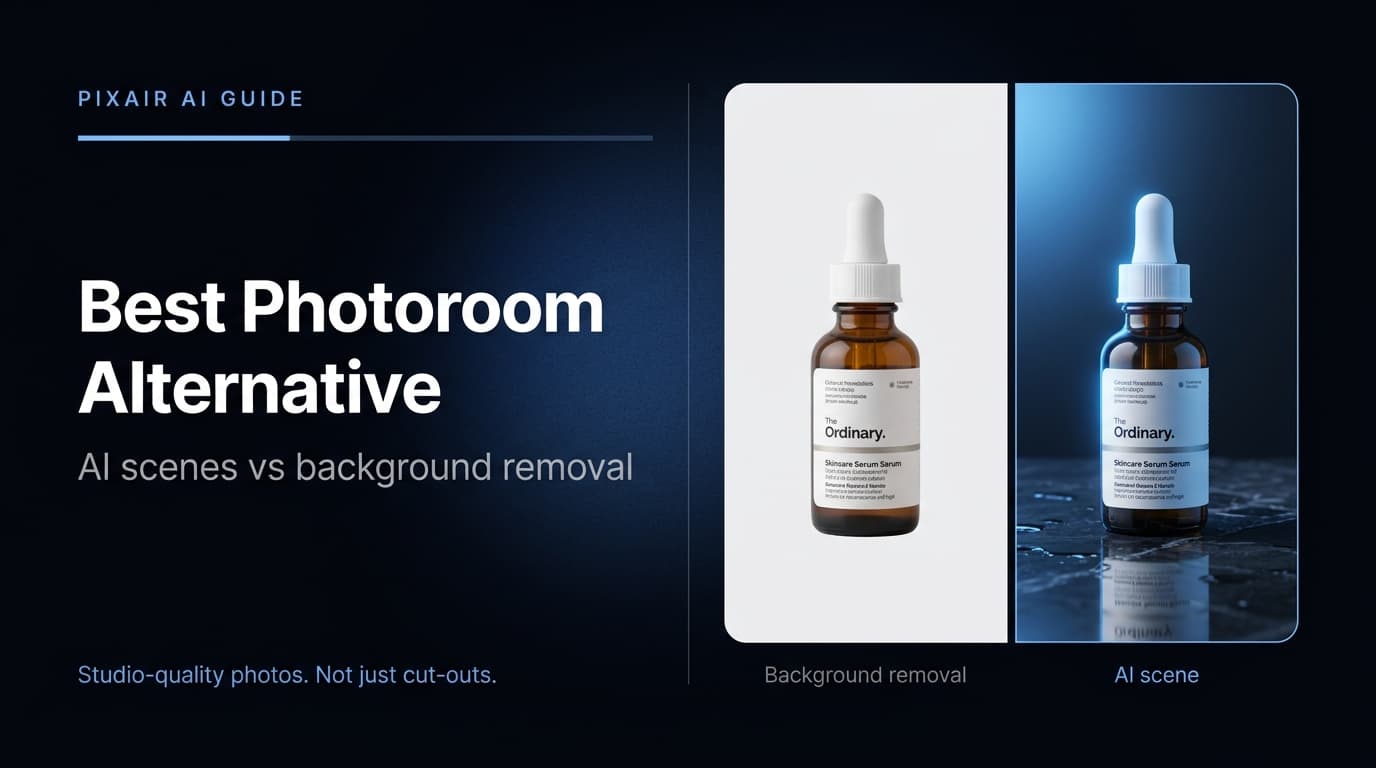
Photoroom is the fastest background remover on mobile - it cuts out products in seconds and has a template library for basic scene replacement. But for ecommerce sellers who need photorealistic studio scenes, Amazon-compliant white backgrounds, or ready-to-run ad creatives, Photoroom falls short. Here are the five best Photoroom alternatives in 2026, tested on output quality, features, and price.
What is the best free Photoroom alternative?
For ecommerce sellers, the best free Photoroom alternative is Pixair AI: it starts with 30 free credits, no card and no expiry, and goes beyond background removal to generate AI scenes, Amazon-compliant white-background images (RGB 255/255/255) and static ad creatives for Meta, TikTok and Google from one product photo. Paid plans run $7, $24 and $59/month with 100, 400 and 1,000 credits; a scene or ad costs 4 credits and background removal 1. Remove.bg is the better pick if you only need cutouts, and Canva if you already design there.
Quick comparison
1. Pixair AI - Best for AI Scene Generation and Ad Creatives
Best for: Ecommerce sellers who need photorealistic product scenes, Amazon-compliant white backgrounds, and ad creatives from one tool.
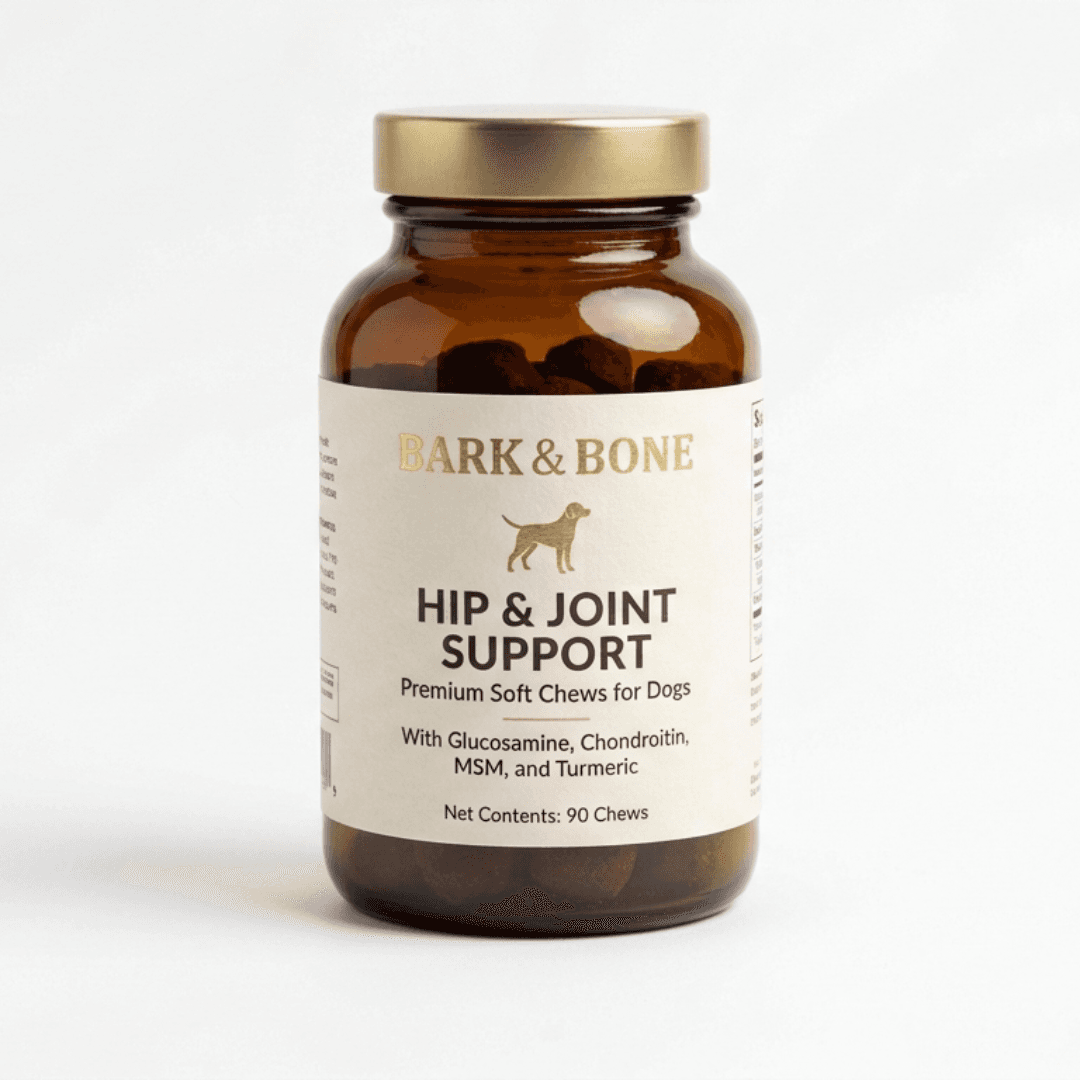
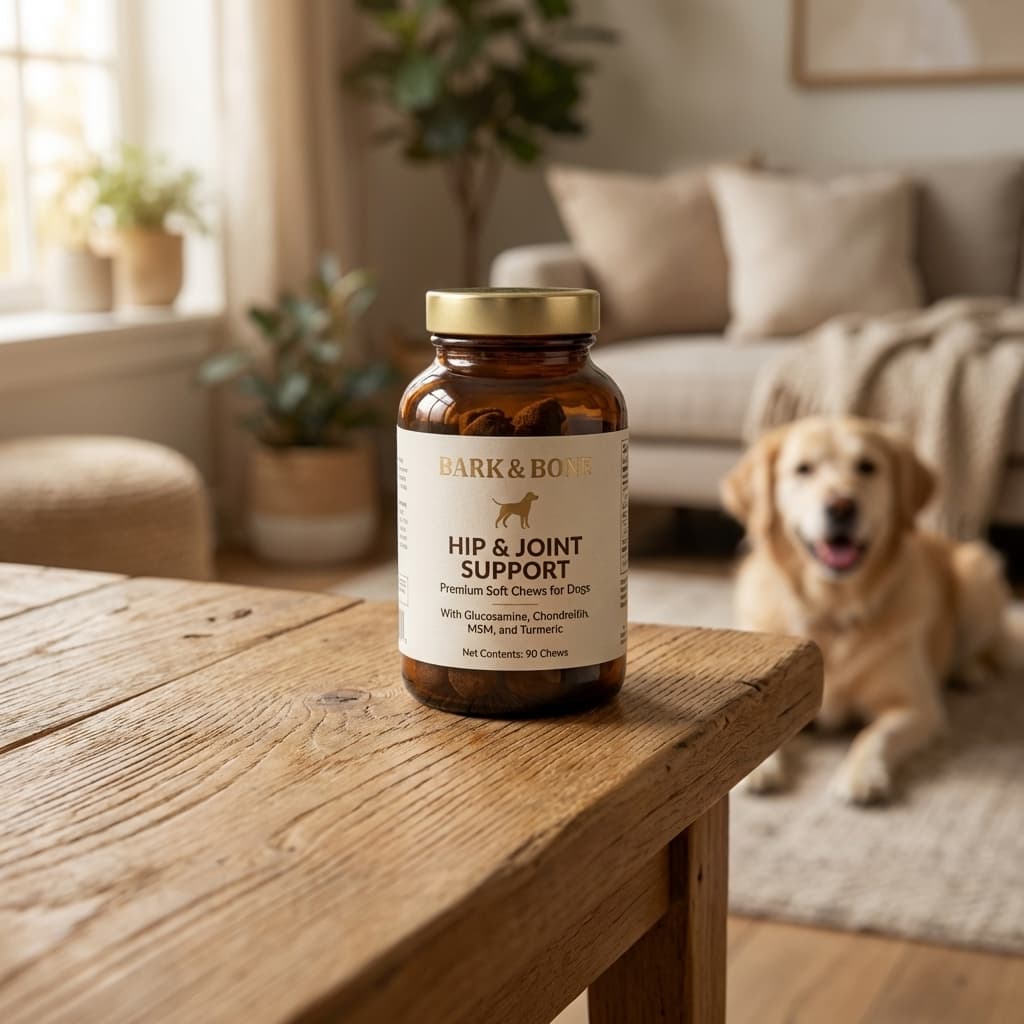
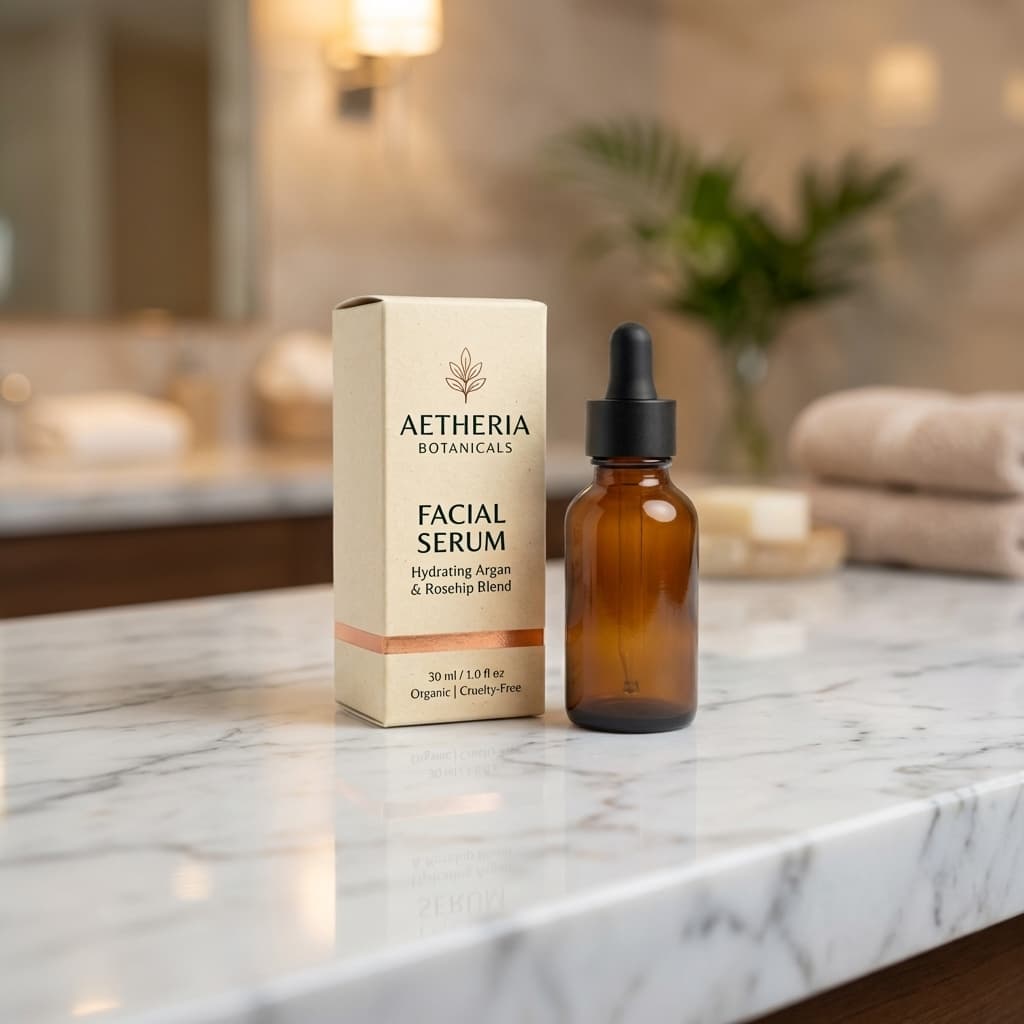
Pixair AI takes a single product photo and generates a complete photorealistic scene with accurate lighting, surface shadows, and reflections. The AI removes the background from your source photo, preserves your label and packaging exactly, and generates the environment around it from a text prompt. The white background preset outputs pure RGB 255/255/255 for Amazon main image compliance automatically.
The Ad Maker reads your product label and generates marketing-ready ad compositions with product-specific copy and typography - no design tool or brief required. One upload covers product scenes for listings and ad creatives for Meta, TikTok, and Google Shopping.
Pros
- + Photorealistic scenes with accurate lighting and shadow
- + Built-in ad creative generation - no separate tool
- + White background preset meets Amazon RGB 255/255/255
- + Same scene prompt keeps full catalog visually consistent
- + Free trial - 30 credits, no credit card required
Cons
- - Web-based only - no mobile app
- - Scene prompts require a short learning curve
2. Pebblely - Best Template-Based Photoroom Alternative
Best for: Sellers who want lifestyle backgrounds without writing prompts.
Pebblely is a product background generator built around a curated template library. Upload a product photo, pick a scene from the library, and it places the product into that background. The template approach is faster on first use than prompt-based tools - no prompting required. The tradeoff is that every user draws from the same template pool, which limits scene uniqueness compared to prompt-generated outputs. See the full Pebblely alternative comparison.
Pros
- + No prompting - template selection only
- + Fast on first use
- + Free tier available (40 images/month)
Cons
- - Shared template pool - less unique than prompt-based tools
- - No ad creative generation
- - No lighting direction control
3. Flair AI - Best for Drag-and-Drop Creative Staging
Best for: Sellers who want manual control over props and scene composition.
Flair AI uses a canvas interface where you drag your product onto a board, add props from a library, and generate the scene around the full composition. It gives more creative control over what appears in the frame than template or prompt-based tools. The tradeoff: setup time per product is longer, and it stops at the scene - moving to a ready-to-run ad requires a separate design tool. See the full Flair AI comparison.
Pros
- + Visual canvas gives fine-grained composition control
- + Large prop and accessory library
- + Good for styled editorial hero shots
Cons
- - Longer setup per product vs prompt-based tools
- - No ad creative generation
- - Harder to keep consistent across a full catalog
4. Remove.bg - Best Free Photoroom Alternative for Background Removal Only
Best for: Sellers who only need to remove a background and nothing else.
Remove.bg does one thing: removes backgrounds from photos automatically. No scene generation, no templates, no ad creation. For sellers who just need a clean cut-out to place on a white canvas manually or bring into Canva for a layout, it is fast and accurate. Preview quality is free; full-resolution downloads cost credits.
Pros
- + Free for preview-quality outputs
- + Fast and accurate removal
- + No account required for quick use
Cons
- - Background removal only - no scene generation
- - HD downloads require credits (pay-per-use)
- - No ad creative workflow
5. Canva - Best for Sellers Who Already Use a Design Tool
Best for: Sellers who need background removal plus text overlays, templates, and social graphics in one place.
Canva Pro includes background removal alongside its full design suite. If you already use Canva for social posts or promotional graphics, the built-in background removal is a convenient Photoroom replacement for simple use cases. For photorealistic AI-generated scenes, Canva is not the right tool - it composites your product onto template backgrounds rather than generating a scene with correct lighting. See the full Canva alternative comparison.
Pros
- + Background removal + design templates in one tool
- + Familiar for most sellers already using it
- + Good for adding text overlays to product images
Cons
- - No AI scene generation - template compositing only
- - Background removal less accurate than specialized tools
- - No Amazon white background compliance preset
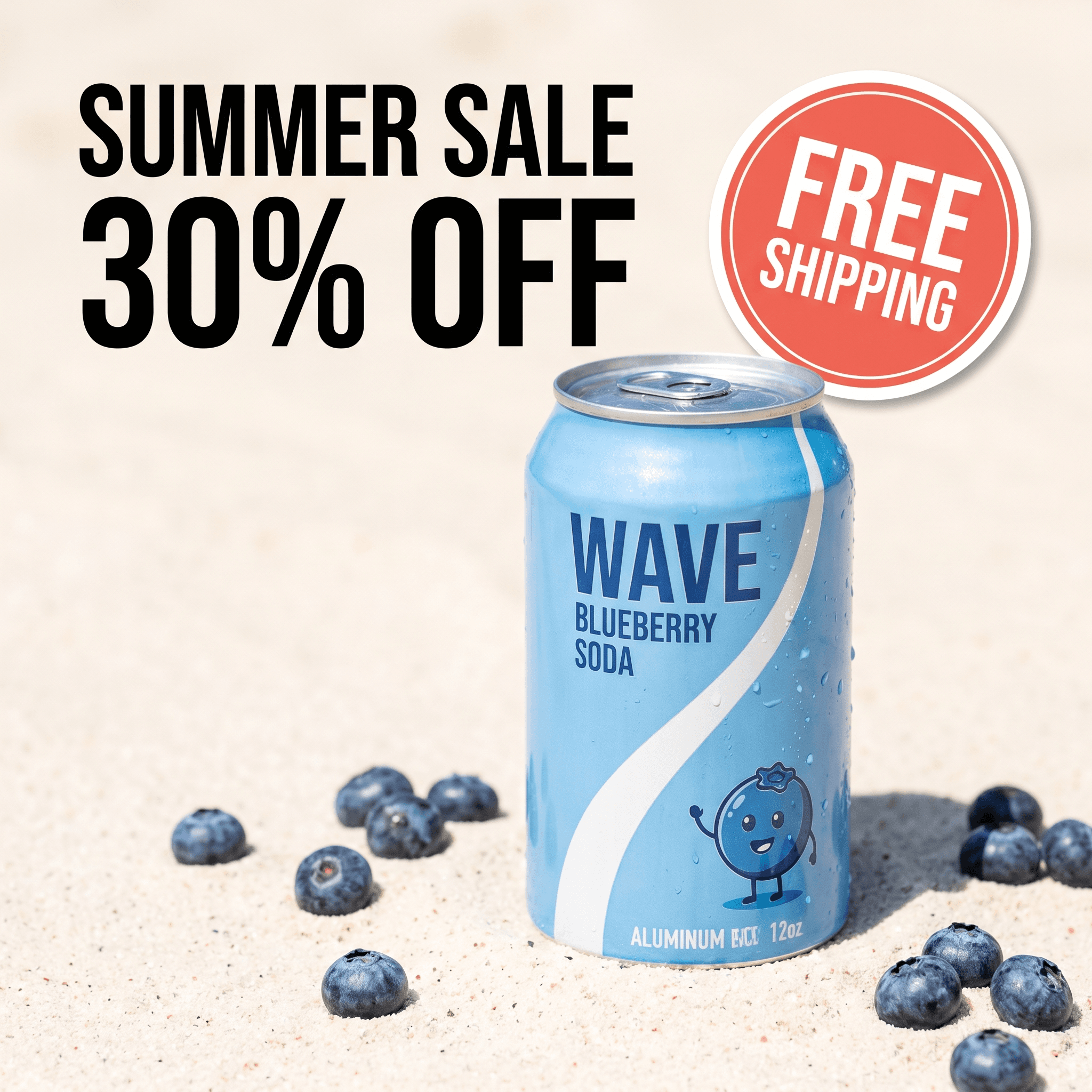
Lifestyle scene
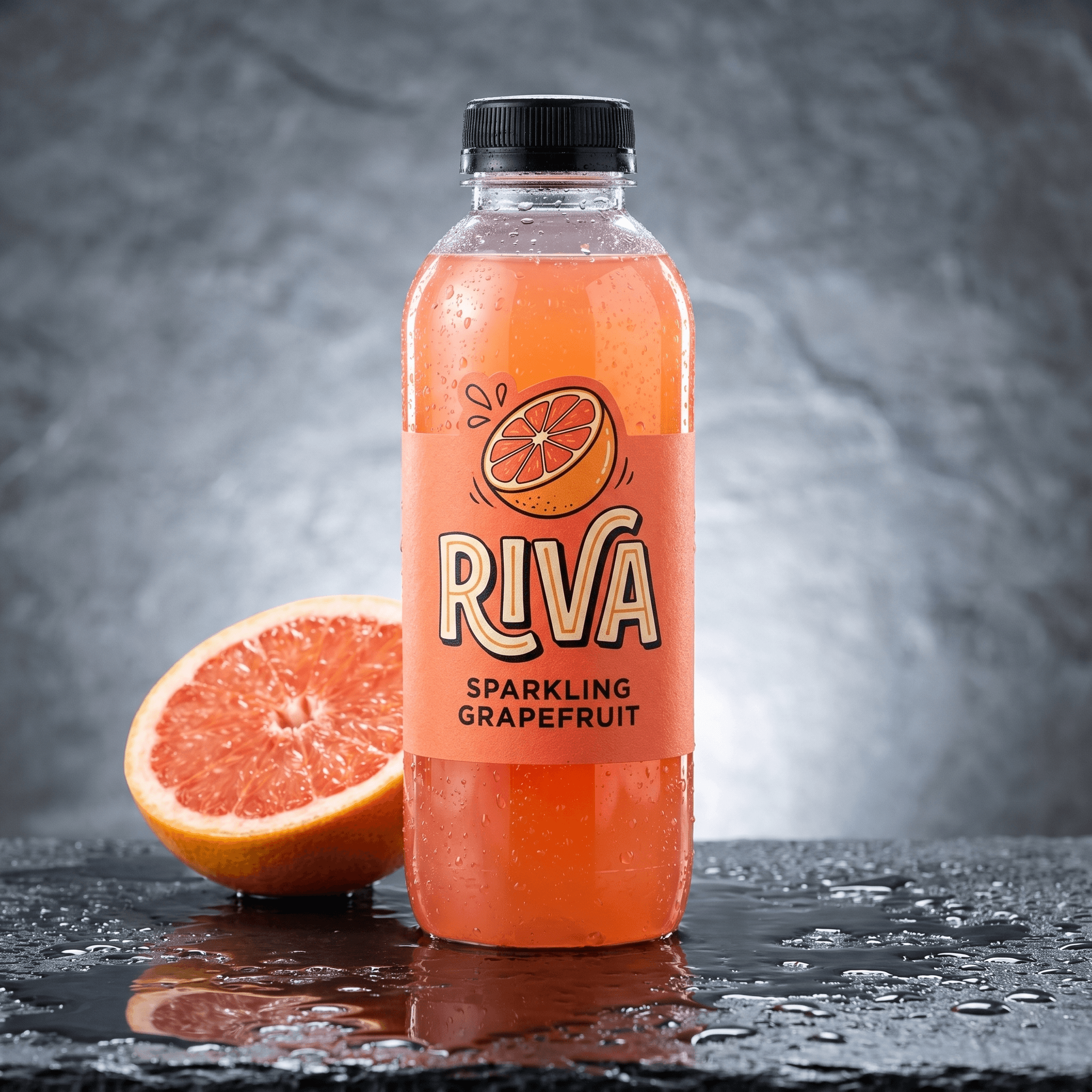
Studio dark

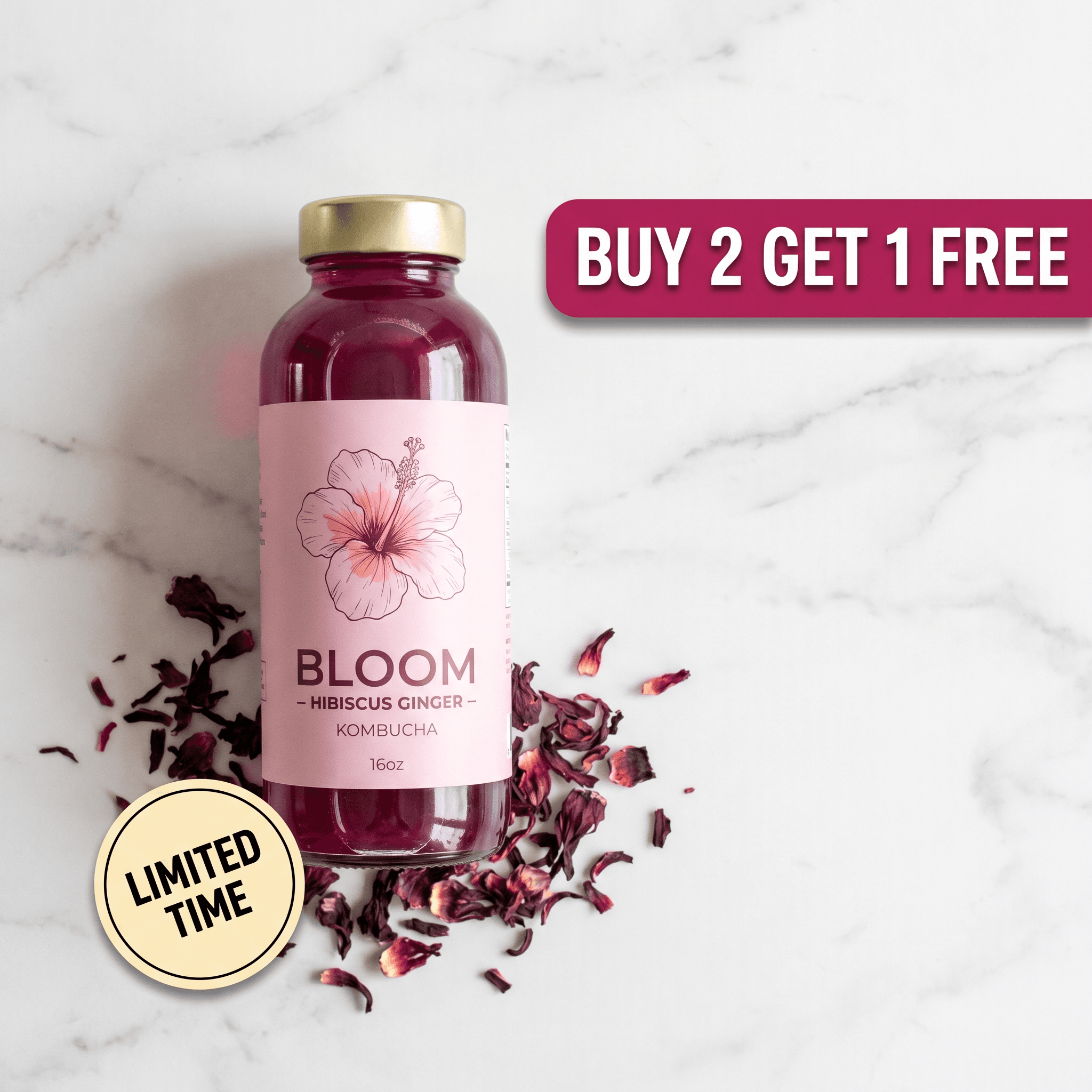
Ad creative
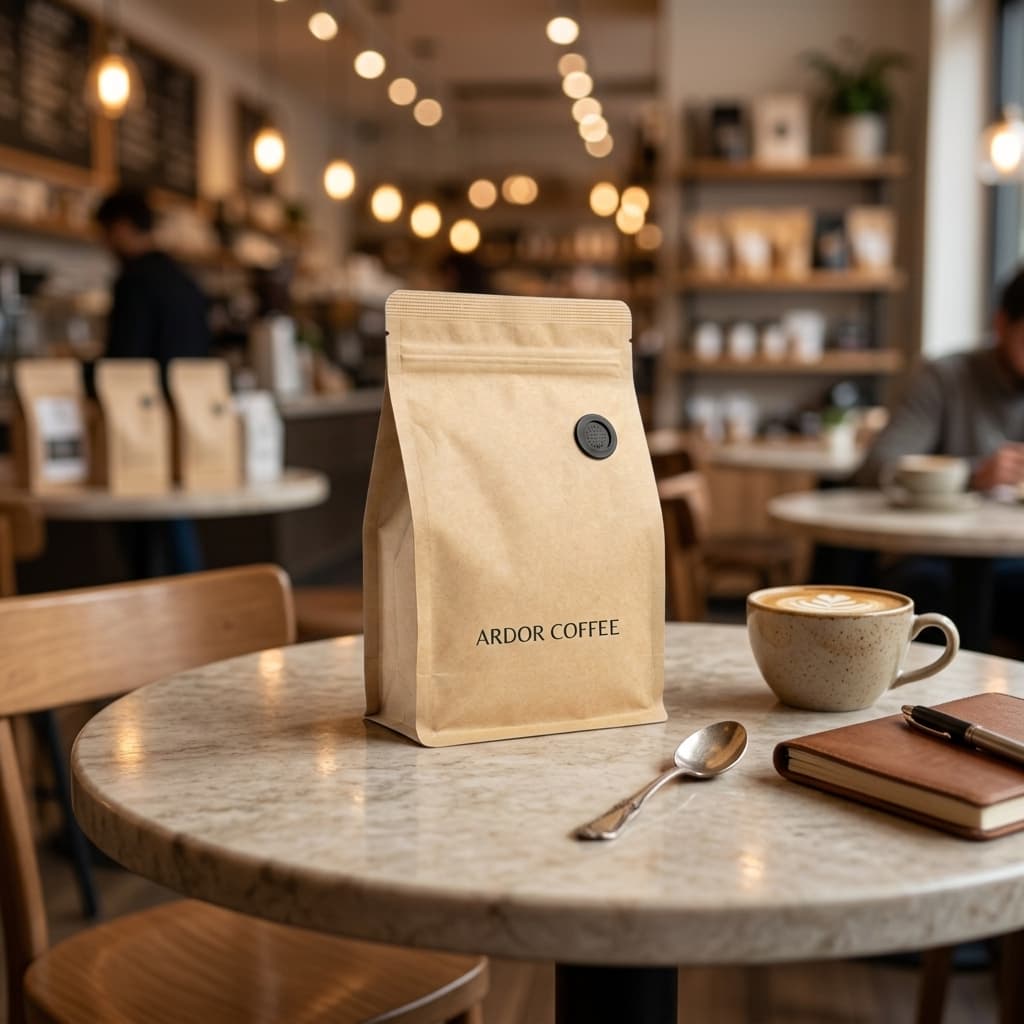
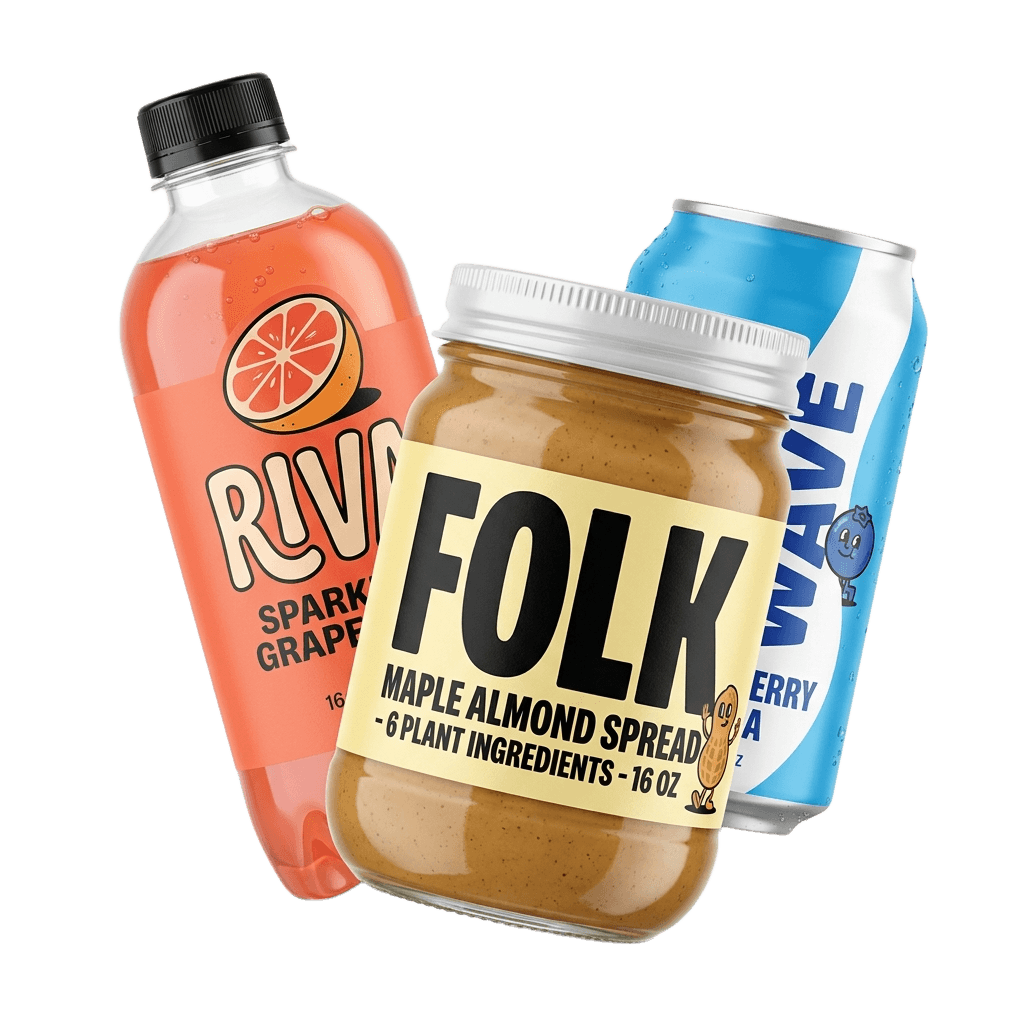
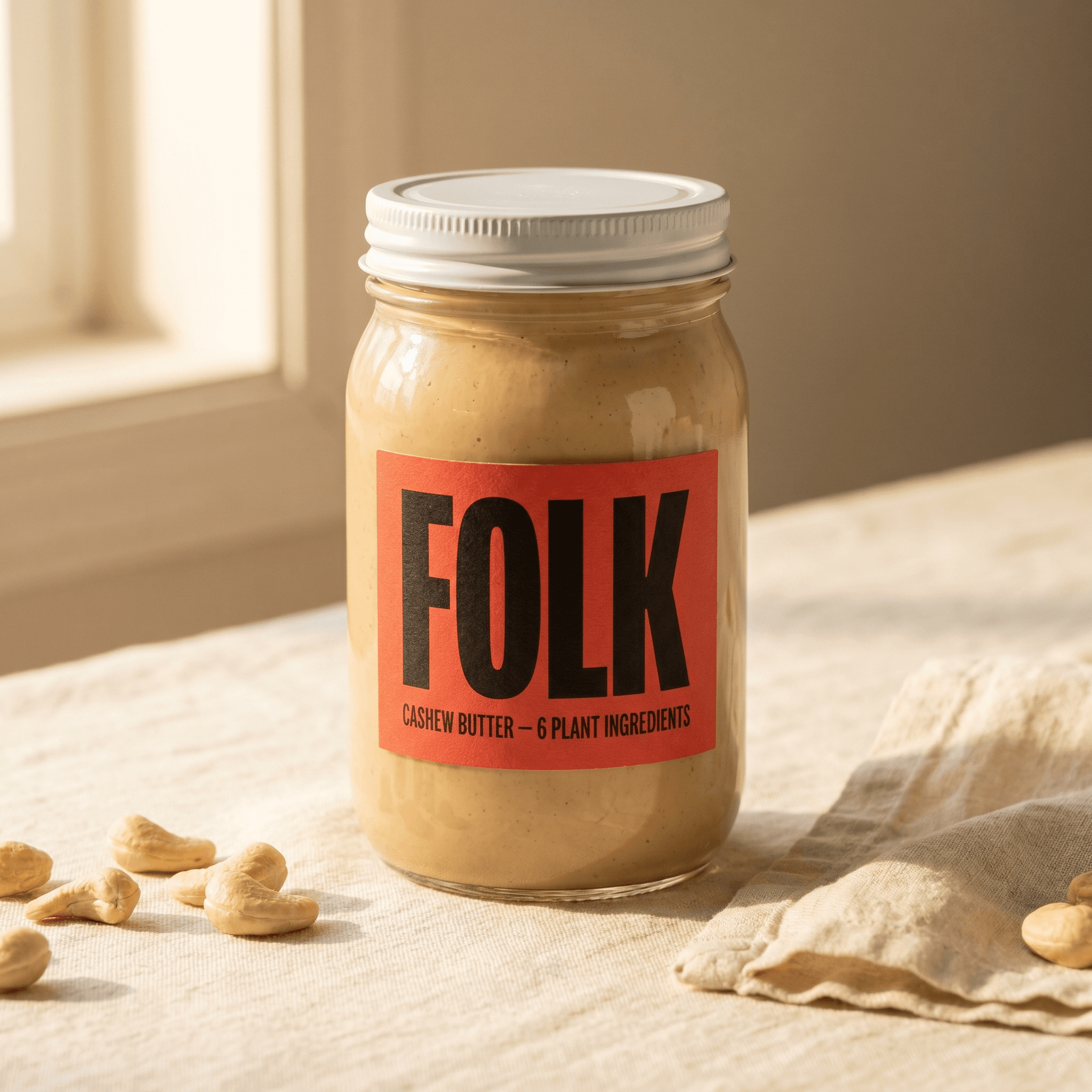
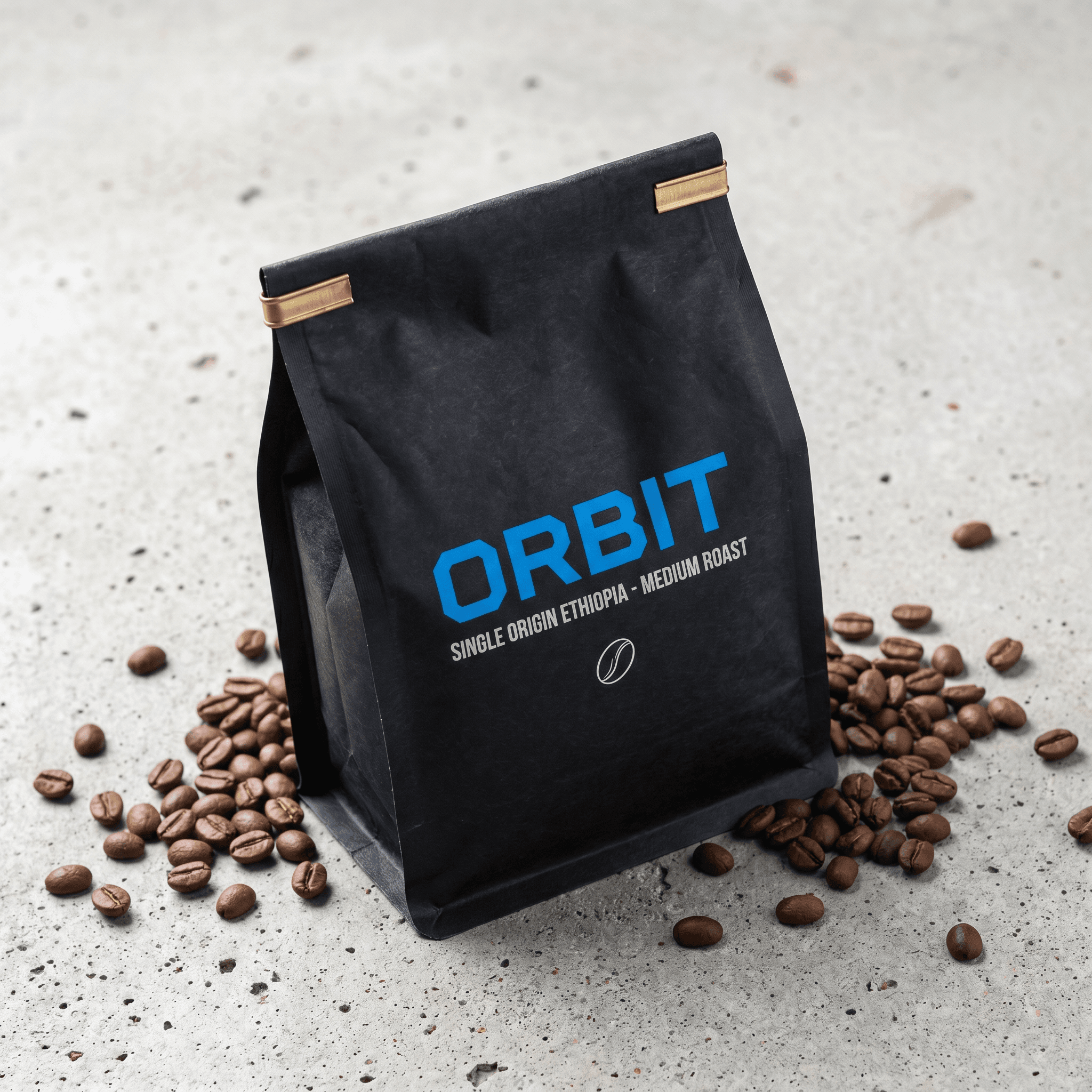
Pixair AI - lifestyle scene, studio dark, and ad creative from a single product upload.
How to Pick the Right Photoroom Alternative
Need photorealistic scenes for listings or ads: Pixair AI. Prompt-based scene generation with built-in ad creation and Amazon compliance.
Want background replacement without prompting: Pebblely. Template library, no setup required, free tier available.
Want manual control over props in the frame: Flair AI. Canvas interface for precise composition control.
Only need clean cut-outs, nothing else: Remove.bg. Free for preview quality, pay per HD image.
Already use Canva and just need background removal added: Canva Pro. Stays in your existing workflow.

Frequently Asked Questions
The best Photoroom alternative depends on what you need. For photorealistic AI scene generation and ad creatives, Pixair AI is the strongest option - it generates scenes with accurate lighting, produces Amazon-compliant white backgrounds, and includes ad creative generation from the same upload. For template-based backgrounds without prompting, Pebblely is the fastest to start with. For pure background removal for free, Remove.bg handles that one task well.
Remove.bg is the best free alternative if you only need background removal - preview-quality outputs are free with no account required. Pebblely offers a free tier with 40 images per month for lifestyle scene replacement. Pixair AI includes 30 free credits (no credit card required) which covers a full image set for 2-3 products including white background and lifestyle scenes.
Photoroom's background removal is excellent - particularly on mobile where it is very fast. Pixair AI includes background removal as part of the scene generation pipeline and produces clean edges on all standard product types. If you only need background removal, Photoroom's dedicated tool is highly capable. If you need background removal as a step toward generating a photorealistic scene or ad creative, Pixair AI handles the full workflow in one place.
Yes. Pixair AI removes the background from your source photo and composites the isolated product into the generated scene without regenerating the product itself. Your label text, ingredient list, brand name, and any printed graphics are taken directly from your original photo and remain pixel-accurate. The AI only generates the scene behind and around the product.
Yes. Both platforms allow AI-generated product images as long as they accurately represent the physical product. Pixair AI preserves the original product packaging - it does not modify the product. The white background preset produces a pure white RGB 255/255/255 output that meets Amazon main image requirements.
Pixair AI is a web-based tool optimized for catalog-scale production workflows on desktop or laptop. Photoroom has a stronger mobile experience for quick individual edits. For building a full product image library across multiple SKUs and scene types, Pixair AI is built for that production volume.
Keep reading
Related articles
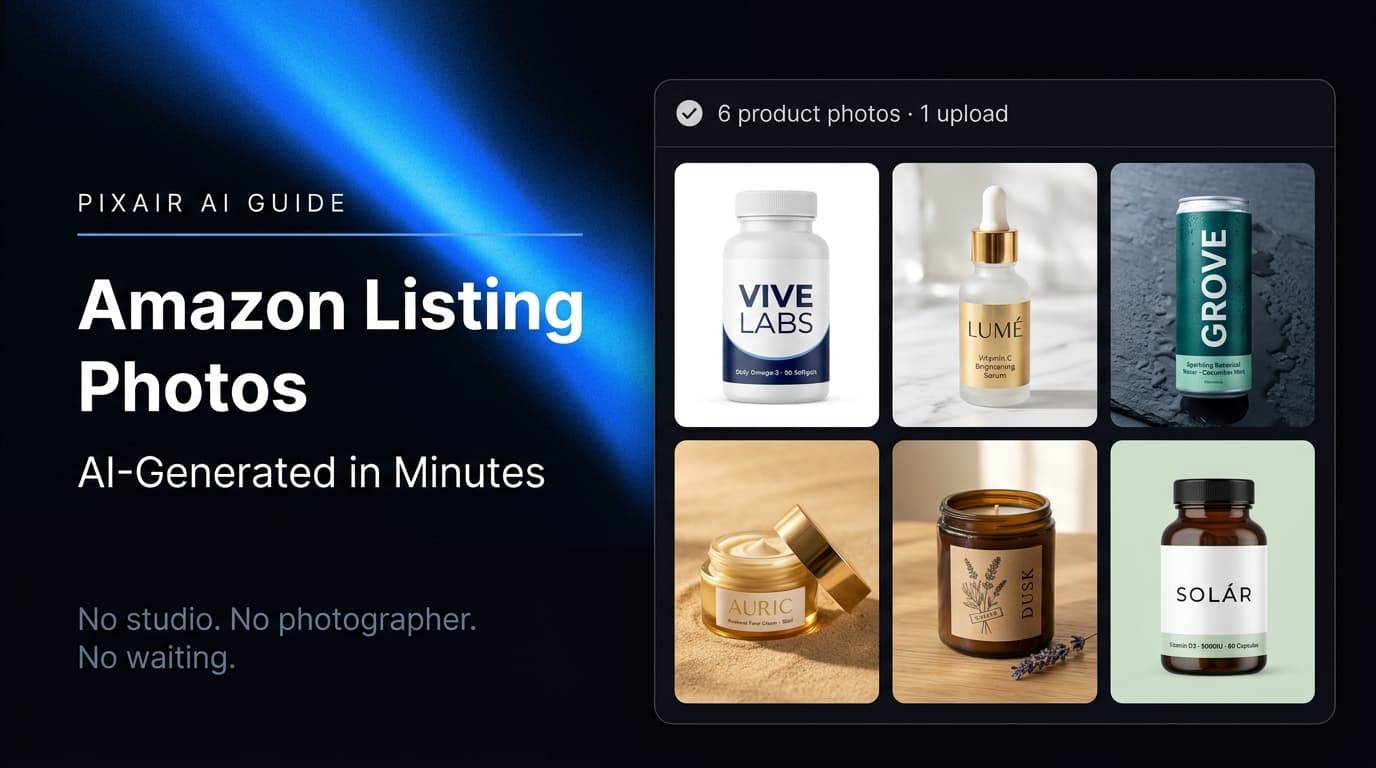
Amazon Product Image Generator: Compliant in 4 Steps (Free)
Turn one phone photo into an Amazon-compliant main image (RGB 255/255/255, 85% fill, 2,000 px) plus lifestyle images for all 9 slots. Free with 30 credits.
AI Product Photography for Amazon Sellers - Full 9-Image Sets
Amazon suppresses non-compliant listings and ranks by CTR. See how AI product photography handles white background compliance, lifestyle secondary images, and full 9-slot image sets - no photographer.

Best Caspa AI Alternative - Product Photos + Ad Generation
Caspa AI focuses on AI human models. If you sell packaged products and need clean product scenes, ad creatives from your label, and no $33/month paywall to start - Pixair AI is built for that.