Mokker AI gave ecommerce sellers a way to skip the photoshoot - upload a product, pick a preset, get a scene. That covers the photography step, but the gap between a finished scene and a running ad is where most production time actually goes: opening a design tool, writing ad copy, laying out a creative, exporting in five aspect ratios. The best Mokker alternative for sellers running paid ads is a tool that closes that gap inside the same upload session - one product photo to scene, copy, and finished ad creative.
Where Mokker AI Stops Short for Sellers Who Ship Ads
Mokker AI is a solid product photography tool. The constraint is scope: it generates the scene and ends there. Three gaps come up every time a seller tries to take a Mokker output from a finished scene to a launched ad campaign.
No ad creative generation
Mokker produces a product placed inside a scene background - that is the entire output. Turning that scene into a Meta, Google Shopping, or TikTok ad requires opening Canva or Figma, manually designing a layout with headline copy, benefit callouts, and brand elements, then exporting in each aspect ratio. For a seller running 4-5 ad variations per campaign, that is a separate 30-45 minute production session per product - on top of the time already spent in Mokker.
No ad copy written from the product
Even if you stitch together a design tool to handle the layout, the copy still has to come from somewhere. Mokker does not read your product packaging or generate any text. Every headline, ingredient callout, benefit line, and tagline is written manually for every ad variation. For sellers iterating creative weekly, the copywriting time compounds faster than the design time.
Preset-driven scenes, limited prompt control
Mokker's scene system is built around presets organized by product category - cosmetics, food, supplements, and similar buckets. The preset defines the surface, the lighting, and the atmosphere. You can guide it with short prompts but the scene shape is anchored to the preset. Sellers who want a specific scene that does not exist in the preset library, or a brand-specific lighting formula across their full catalog, hit the ceiling of what preset-driven generation can produce.
What End-to-End AI Product Photography Does Differently
End-to-end means the same upload that produces your scene also produces your ad creative - copy included. The AI reads your product label directly from the source photo, writes the headline and benefit lines from what is printed on the packaging, and composes a marketing-ready layout in every aspect ratio you need.
Pixair AI runs scene generation and ad creative generation as two outputs of the same product upload. The product itself is never regenerated - your label, packaging colors, and printed text are isolated from the source photo and stay pixel-accurate. The AI generates the environment behind and around the product, then in a second pass generates the ad composition with copy derived from the label.
The economic difference is per-SKU production time. A scene-only tool like Mokker plus a separate design tool plus a copywriter (or your time) is a 45-60 minute pipeline per product per campaign. A single tool that does scene plus ad in one session compresses that to under 15 minutes - and the copy is always grounded in your actual product, not a generic ad template.
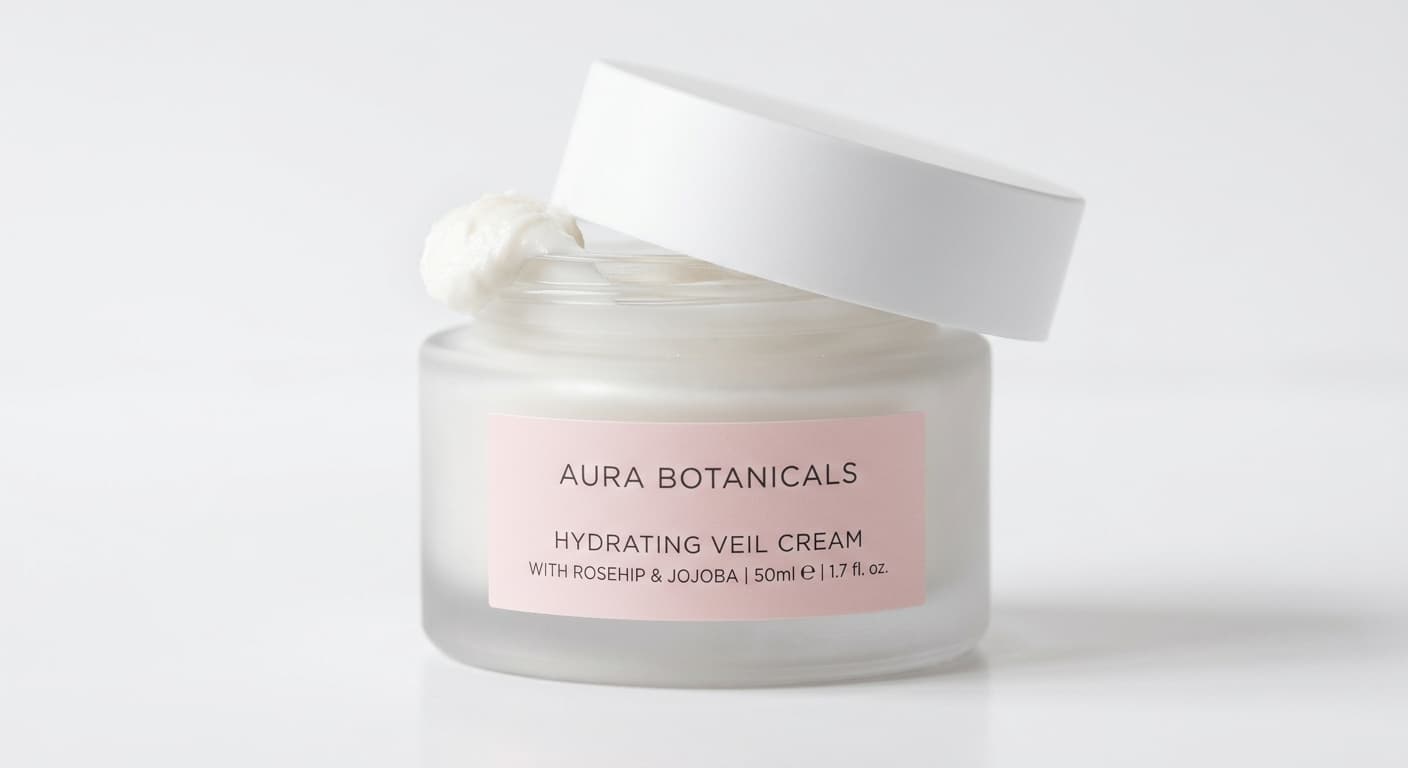

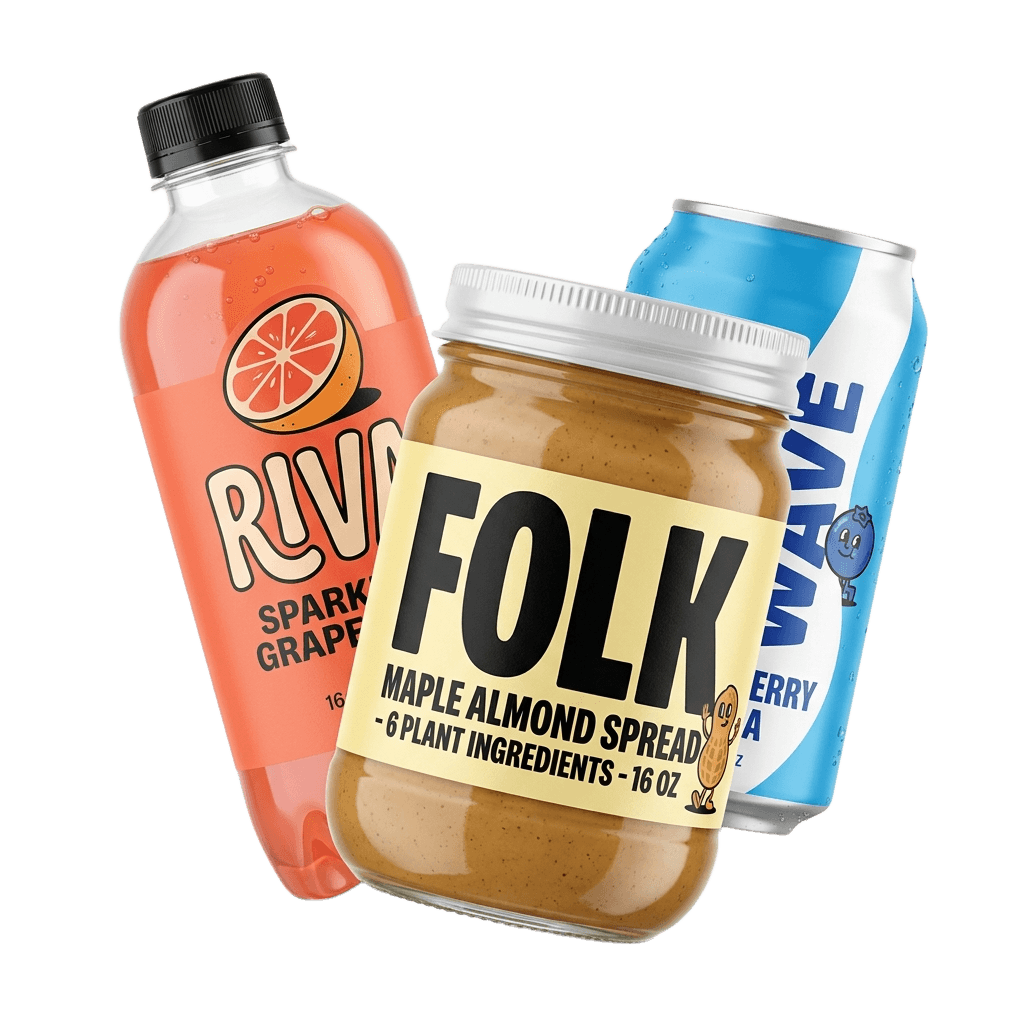
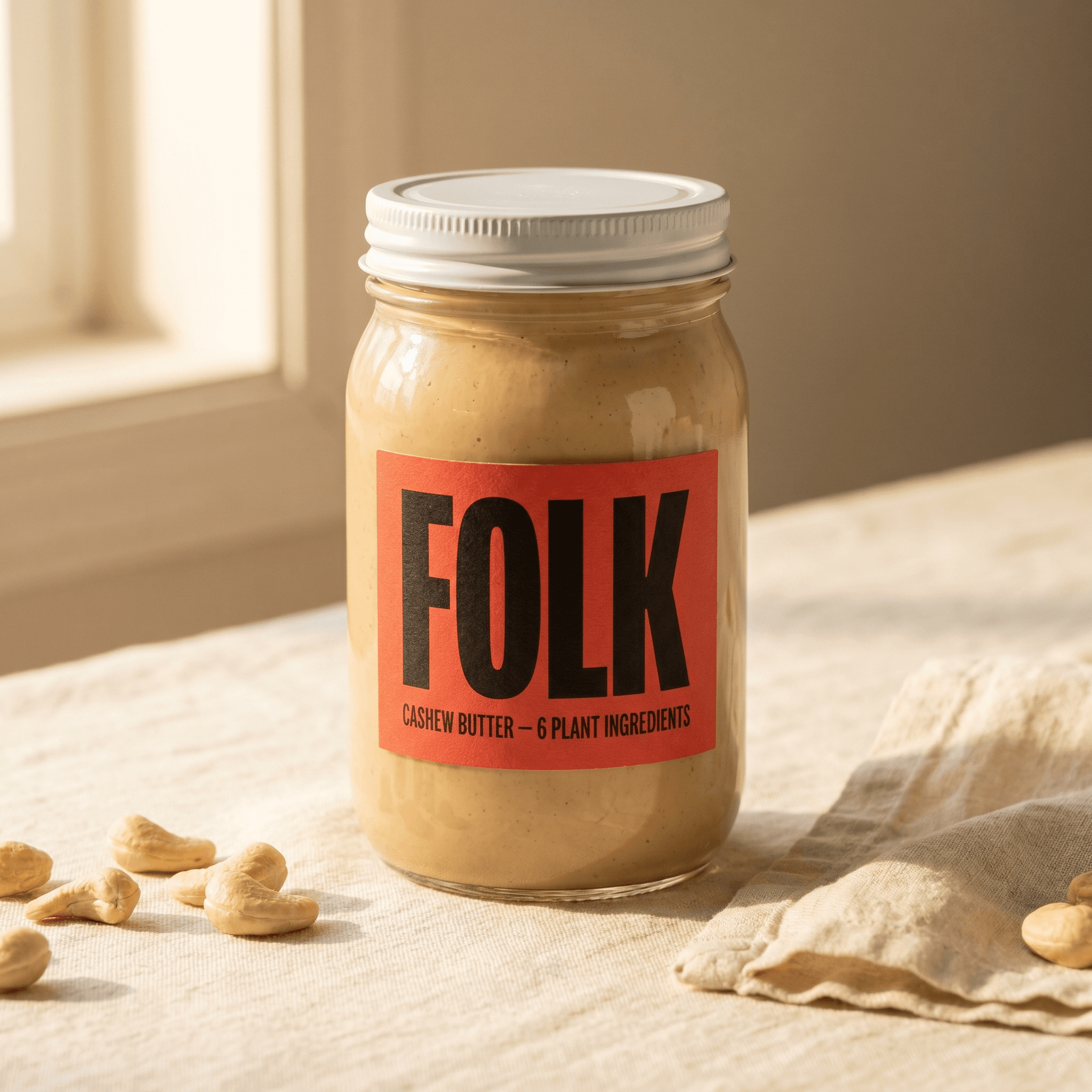
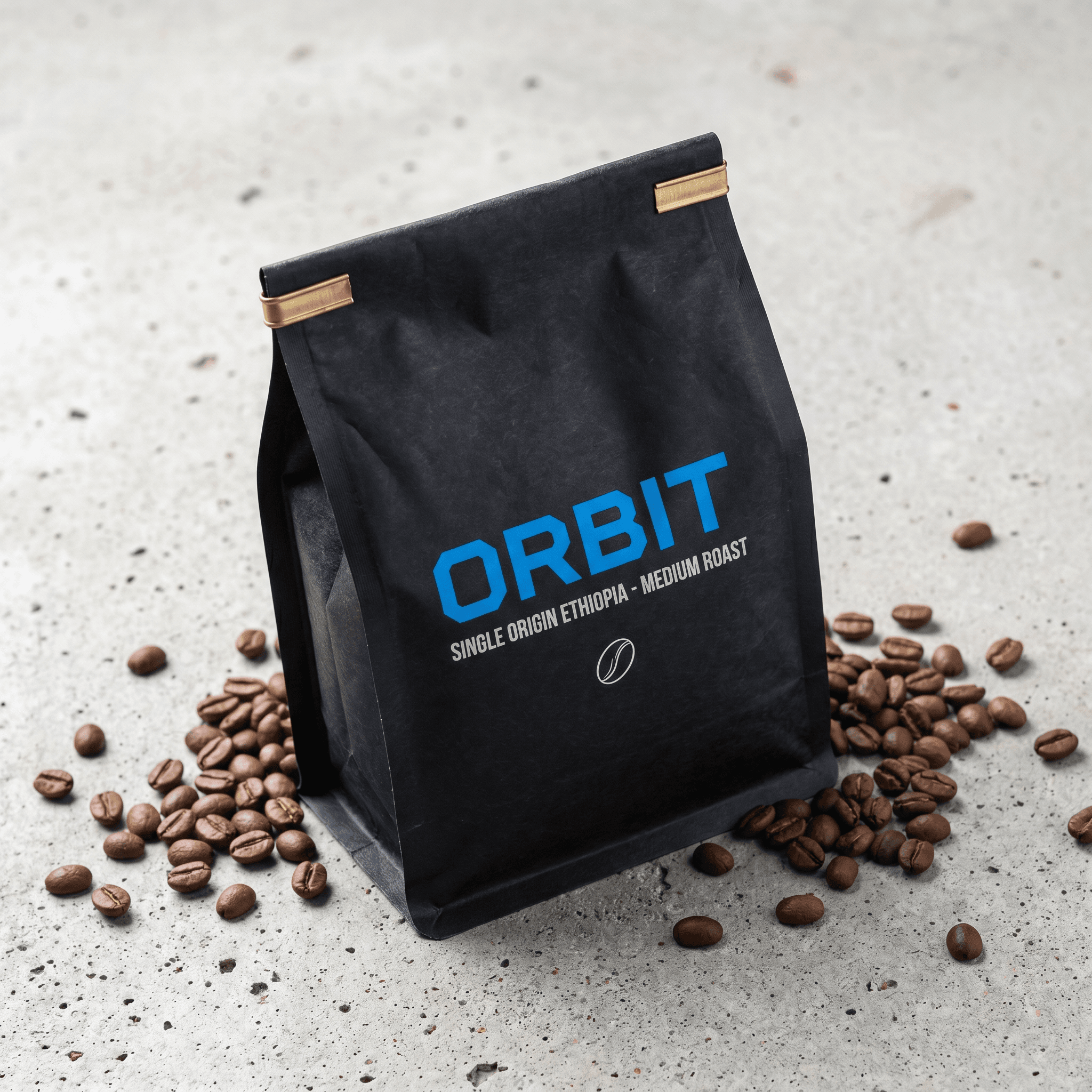
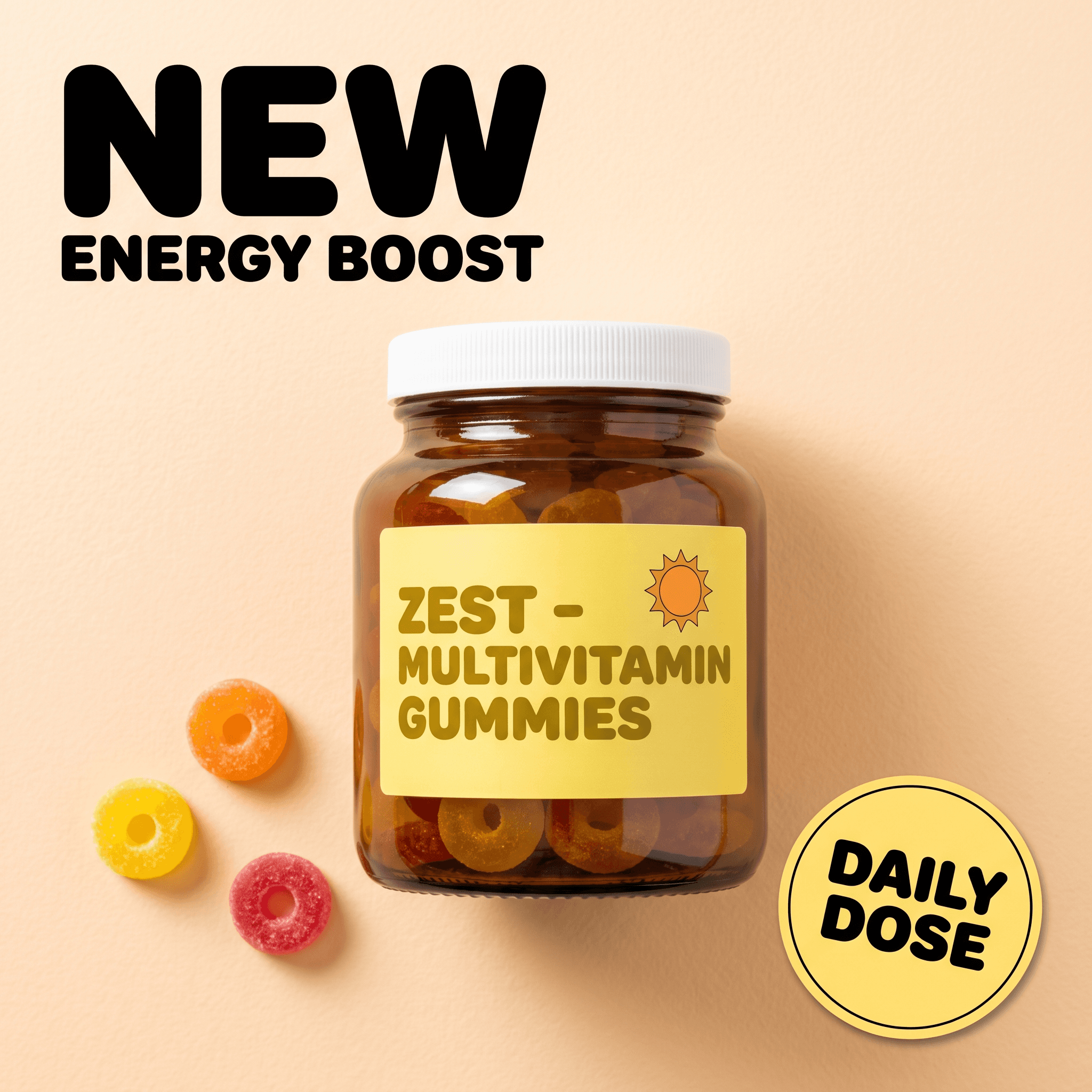
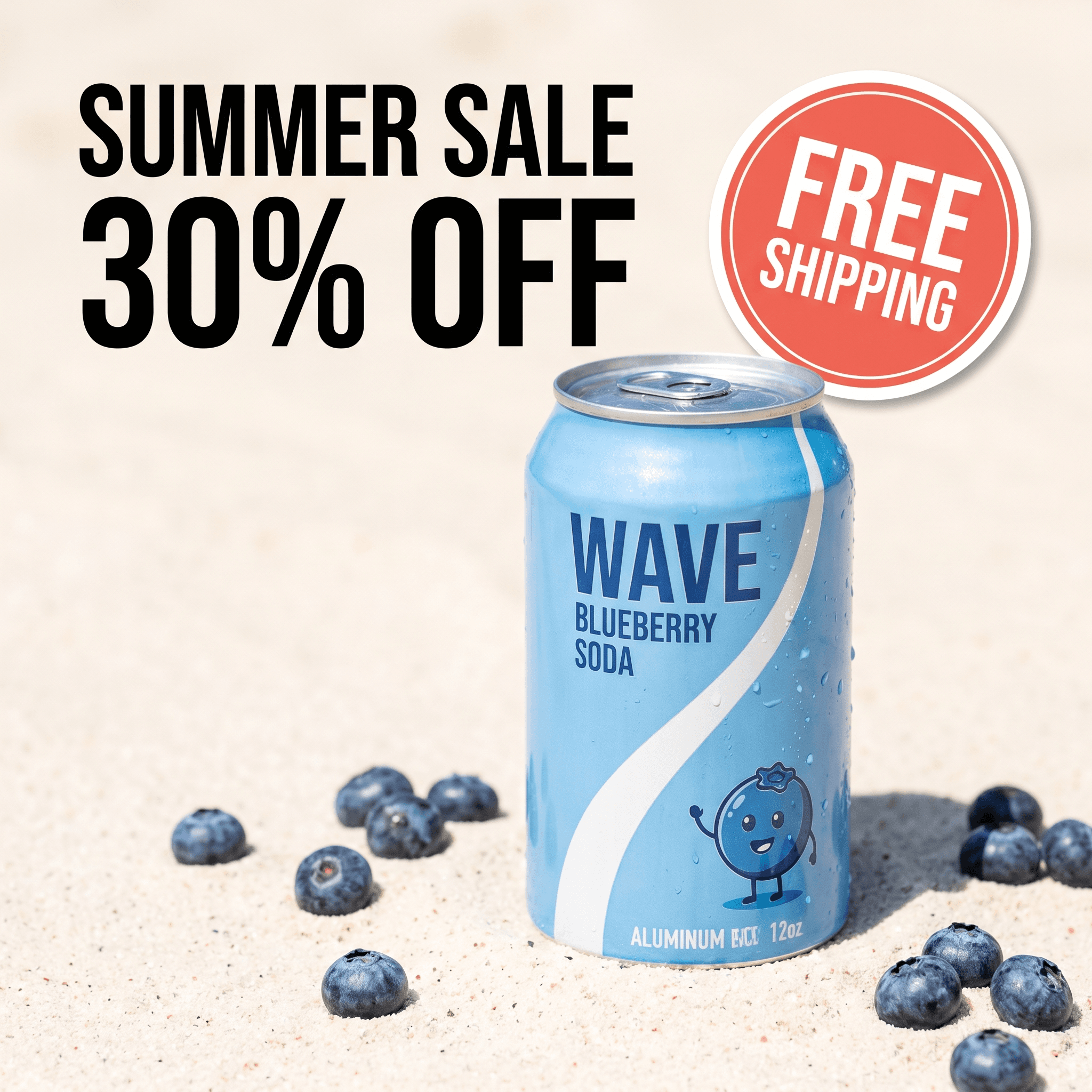
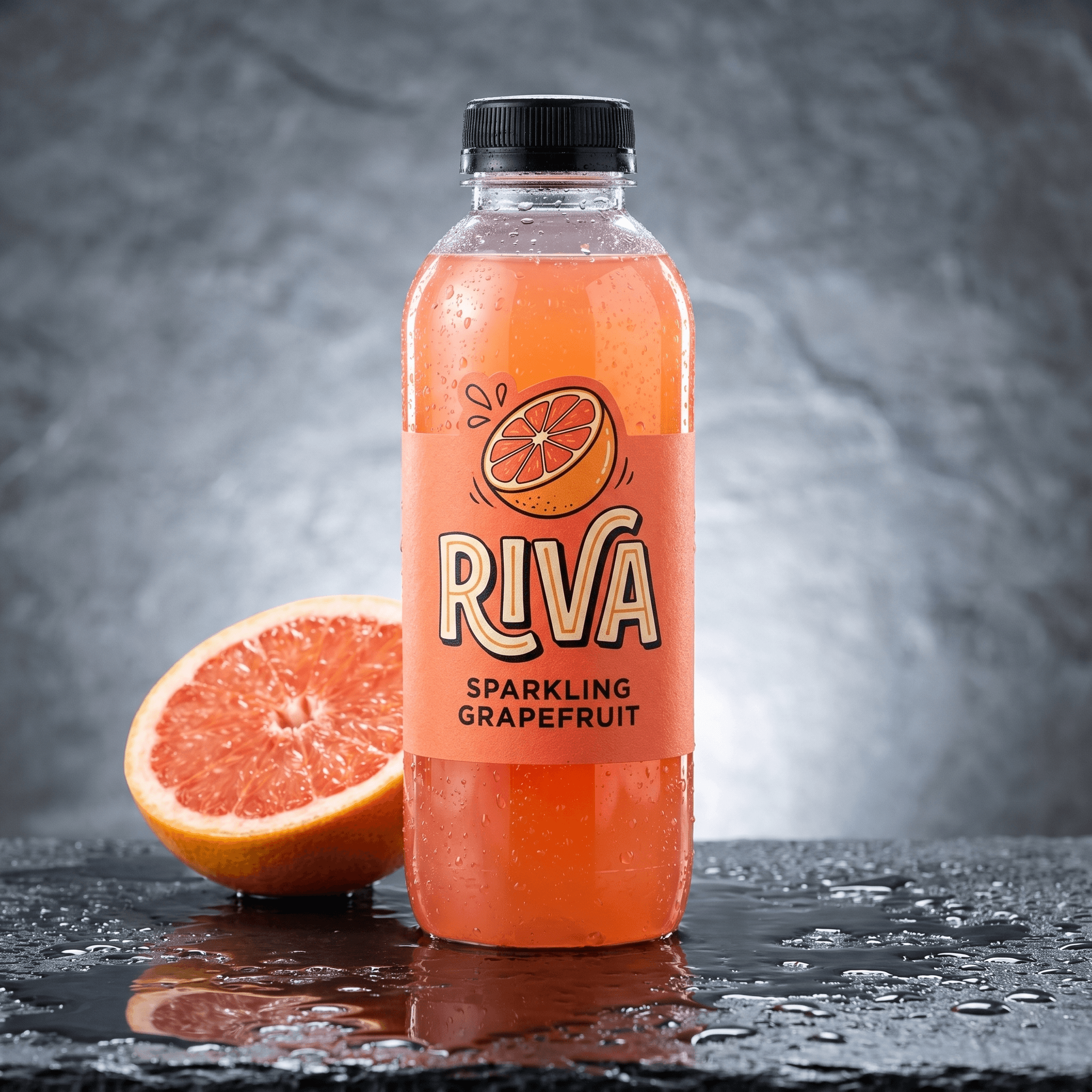
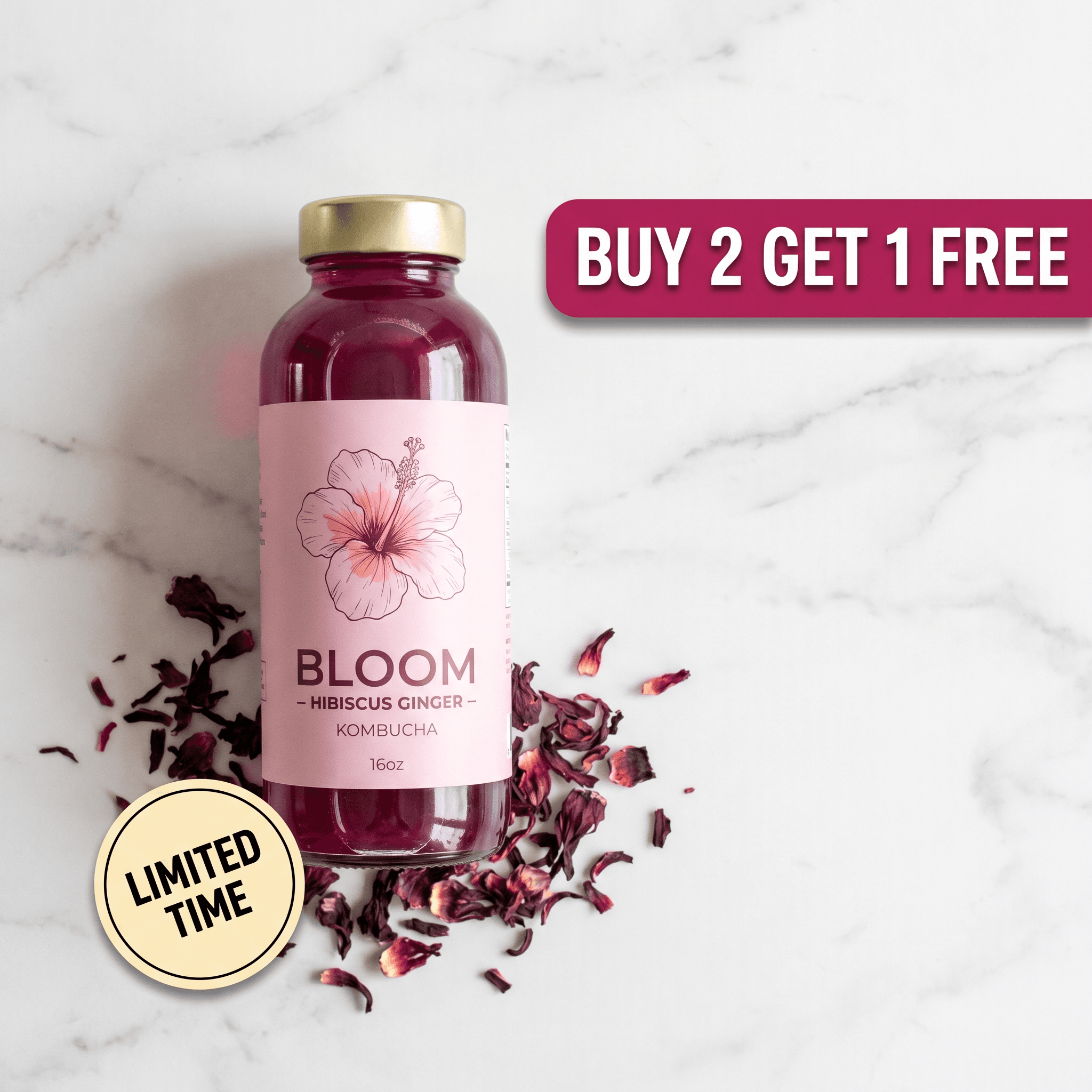
Same product photo. Mokker stops at the scene. Pixair AI reads the label, writes the copy, and exports a finished ad.
Step-by-Step: Replace the Mokker + Canva Pipeline with One Session
This workflow takes the place of the two-tool Mokker plus design tool pipeline. Same starting point - one product photo. Different finish line - exported scenes and exported ad creatives at the end of the same session.
Photograph the product on a clean surface
Place your product on a white or light grey surface near a window. Phone camera is sufficient - generation quality is determined by the AI model, not the source resolution. Keep the full product silhouette in frame with a small margin around the edges and the label facing the camera so the AI can read it for ad copy generation later. One front-facing photo per SKU.
Write a scene description, not a category preset
Upload to Pixair AI and describe the environment in plain language: “dark slate surface, single cool rim light from the upper left” or “white marble, soft diffused morning light from above.” Mokker organizes scenes by product category presets. Pixair AI generates the scene from your description, so the surface, lighting direction, and atmosphere are exactly what you specify - not what a category preset assumes you want.
Generate three scene types per SKU
For each product, run three prompts: a pure white studio background for marketplace main images, one lifestyle scene matching your brand mood, and one premium scene for ads and social. Each generation runs in under 30 seconds. Generate 2-3 variations per scene and keep the strongest. Three scene types per SKU usually finishes in under 20 minutes.
Lock the scene prompt for catalog consistency
Copy the exact prompt that produced your strongest result and paste it for every other SKU upload. The AI generates a new scene around each product using the same surface, lighting, and atmosphere. Mokker users re-select the same preset for each upload - which gives a similar look but rarely identical. Prompt reuse gives identical conditions across the catalog.
Generate ad creatives in the same session
This is the step Mokker does not have. Pixair AI's Ad Maker takes the same product upload and produces a marketing-ready ad in one step - the AI reads your label, writes product-specific copy from the brand name, ingredients, and tagline, and composes a layout ready for Facebook, Instagram Stories, Google Shopping, or TikTok. Both dark and light formats, five aspect ratios.
Source
One upload

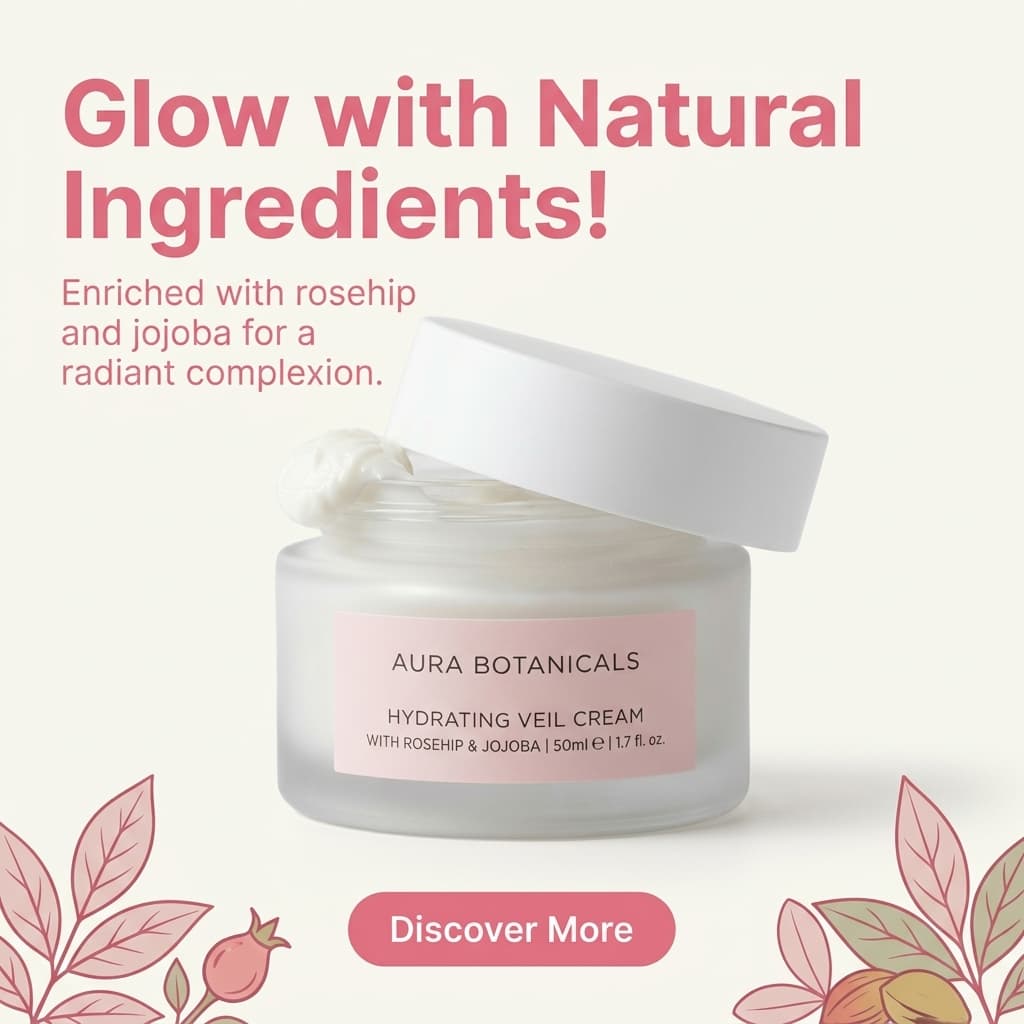
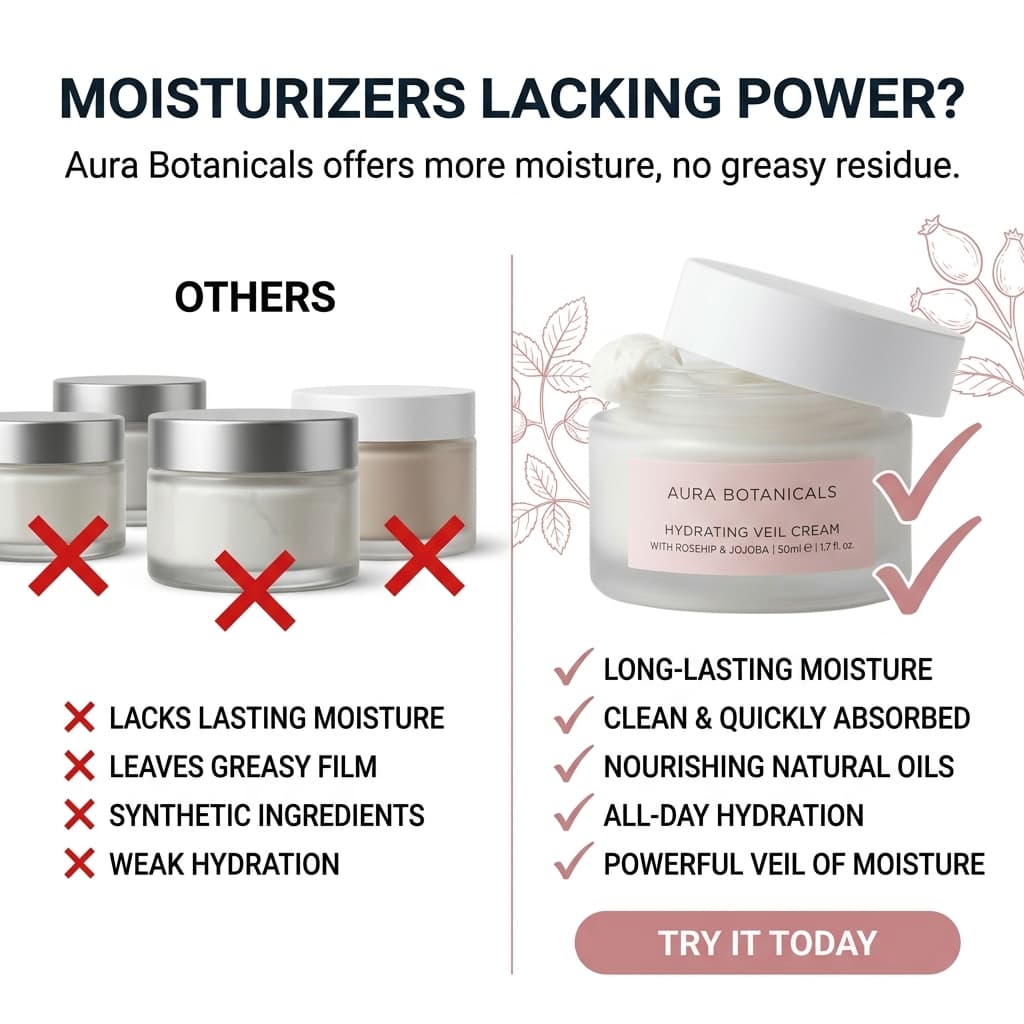


Six ad creatives from one product photo. No Canva, no copywriting, no separate tool.
Mokker AI vs. Pixair AI for Product Photography
Mokker AI
Preset-based product scenes

Scene + ad creative in one session
Mokker AI
Preset-based product scenes
Scene + ad creative in one session
Output scope
Product placed in a scene - the workflow ends here
Scene plus ad creative plus copy - one upload, full output
Ad creative generation
Not available - requires Canva, Figma, or a design tool
Built-in Ad Maker - 6 ad formats from the same upload
Ad copy writing
Manual - written by you for every variation
AI reads the label and writes product-specific copy automatically
Scene generation
Preset categories with prompt-assisted refinement
Prompt-driven from scratch - any environment described in plain language
Time per SKU (3 scenes + ads)
45-60 min (Mokker scenes plus design tool plus copy)
Under 15 min - scenes and ads in one session
Aspect ratio coverage for ads
Manual export per format from the design tool
Five aspect ratios native (1:1, 9:16, 16:9, 4:3, 3:4) - one click each
Catalog consistency
Re-select the same preset per upload - similar but not identical
Paste the same prompt across all SKUs - identical lighting and atmosphere
Shopify app integration
Native Shopify app available
Web-based - works for Shopify, Amazon, Etsy, and any other channel
Free trial
Limited free tier with watermarks on outputs
30 credits free - no watermark, full-resolution exports, no card required
Pricing
From $29/month for entry plan
From $24/month - scene generation, ads, removal, and upscaling included
See Pixair AI pricing - all plans include AI scene generation, background removal, upscaling, and ad creation. Starts at $24/month. Comparing other tools? Read Pixair AI as a Pebblely alternative, Photoroom alternative, Flair AI alternative, and Caspa AI alternative.
5 Tips for Switching from Mokker AI to an End-to-End Workflow
Stop thinking in scene presets, start thinking in scene prompts
The biggest adjustment from Mokker is moving from selecting a preset to describing a scene. A complete scene prompt has three parts: surface material, lighting direction, and lighting quality. “White marble, cool diffused morning light from the upper left” is a complete prompt. Once you have a result you like, change one variable at a time. You will land on a brand scene formula in 2-3 sessions.
Always specify lighting direction in the prompt
The visible quality difference between preset-driven scenes and prompt-driven scenes is lighting coherence. Mokker presets have lighting baked in. Pixair AI lets you control it: “soft light from the upper left” or “overhead diffused studio light.” Specifying direction tells the AI where to place shadows and highlights so the product looks native to the scene rather than composited onto it.
Run the white-background generation first
Before lifestyle scenes or ad creatives, generate one pure white background version of each product. This is your marketplace main image, your catalog base, and your sanity check on edge quality. Once that clean white export is verified, you can generate every other scene type and ad knowing your product isolation is already validated.
Run Ad Maker before closing the session
Mokker users habitually exit the tool once scenes are exported. The single biggest workflow improvement when switching to Pixair AI is running Ad Maker in the same session - while the product is fresh and the AI has already read the label. Six ad creatives in five aspect ratios takes under 5 minutes per SKU and gives you the full ad inventory ready for launch the same hour.
Lock and reuse your scene prompt across the catalog
Mokker scenes vary slightly between uploads even when you use the same preset. Pixair AI gives you exact reuse: paste the same prompt for every SKU and the AI generates each product into identical conditions - same surface, same light, same atmosphere. For a catalog of 20+ SKUs, this prompt-reuse pattern is the difference between visual chaos and a coherent product line.
Frequently Asked Questions
Mokker has a native Shopify app, which is convenient if your entire workflow lives inside the Shopify admin. Pixair AI is web-based and works for Shopify, Amazon, Etsy, eBay, TikTok Shop, and any other channel from one tool. The trade-off is one extra step (export from Pixair, upload to Shopify) versus a single-app workflow that only covers one channel. Most multi-channel sellers prefer the single-tool approach because the same scene and ad assets get used everywhere.
Yes. The AI reads whatever is printed on your product label - brand name, product name, ingredient list, claims, volume, and tagline - and uses that as the source for ad copy. This works for supplements, skincare, food and beverage, candles, home goods, pet products, and any category where the packaging carries a visible label. If the label is clearly visible in the source photo, the AI has what it needs to write copy specific to your product.
No. Pixair AI isolates your product from the source photo and composites it into the generated scene without regenerating the product itself. Your label text, brand name, ingredient list, and any printed graphics come directly from your original photo and remain pixel-accurate. The AI only generates what is behind and around the product.
Yes. Major ecommerce platforms allow AI-generated product images as long as they accurately represent the physical product. Pixair AI does not modify the product itself - only the background and environment are generated. The white background preset produces a pure white RGB 255/255/255 output that meets Amazon main image requirements, and the ad creatives generated by Ad Maker comply with Meta and Google Shopping creative policies.
The decisive difference is per-campaign production time. With Mokker you ship the scene, then move to a design tool to lay out the ad, write the copy, and export each aspect ratio - typically 30-45 minutes of additional work per SKU per campaign. Pixair AI handles all of that from the same upload: scene, copy, layout, and exports in five aspect ratios in under 5 minutes after the scenes are done. For sellers iterating creative weekly, that is the difference between launching one ad set or four in the same time budget.
Keep reading
Related articles
Best Claid.ai Alternative - Scene Generation + Ad Creatives
Claid.ai enhances existing photos but cannot generate new scenes or ad creatives. Pixair AI goes from one product photo to finished marketplace images and platform-ready ads.

AI Dynamic Product Ads - Generate From Any Product Photo
Create dynamic product ads with AI - bold splashes, cinematic lighting, and hero shots from any product photo in seconds. No studio needed.
Compliant product images: lifestyle mockups that pass ad review
How to make AI product images and lifestyle mockups that meet Meta, Amazon and Google ad rules, with examples.